


Enter all the desired criteria: the apps that satisfy them all will be searched; if a criterion is specified multiple times, only the last occurrence will be considered.




















































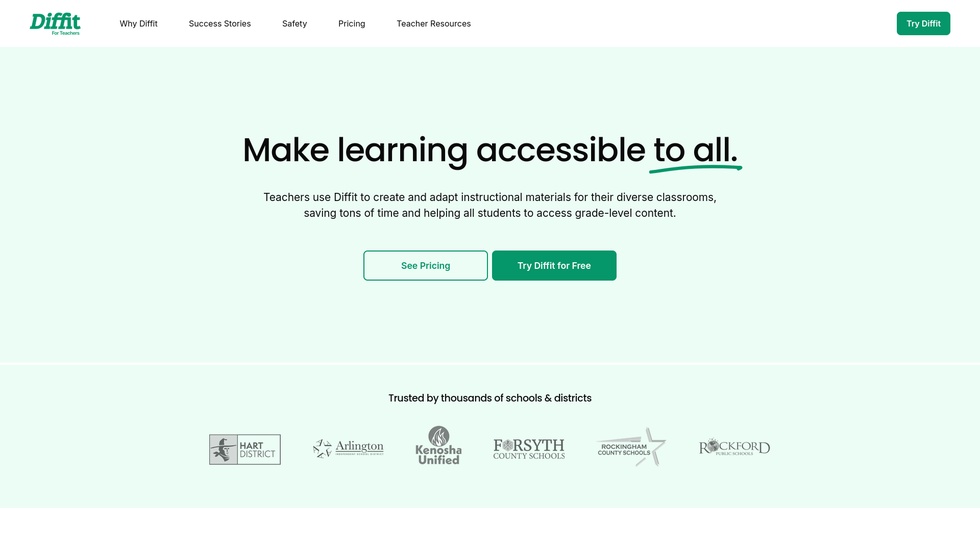
The following image shows the Diffit home page, which provides an initial overview of the platform. The top navigation menu allows users to access pricing information and dedicated teacher resources that highlight the platform's potential. Users can also sign up or log in to the application via the buttons labeled 'Try Diffit'.
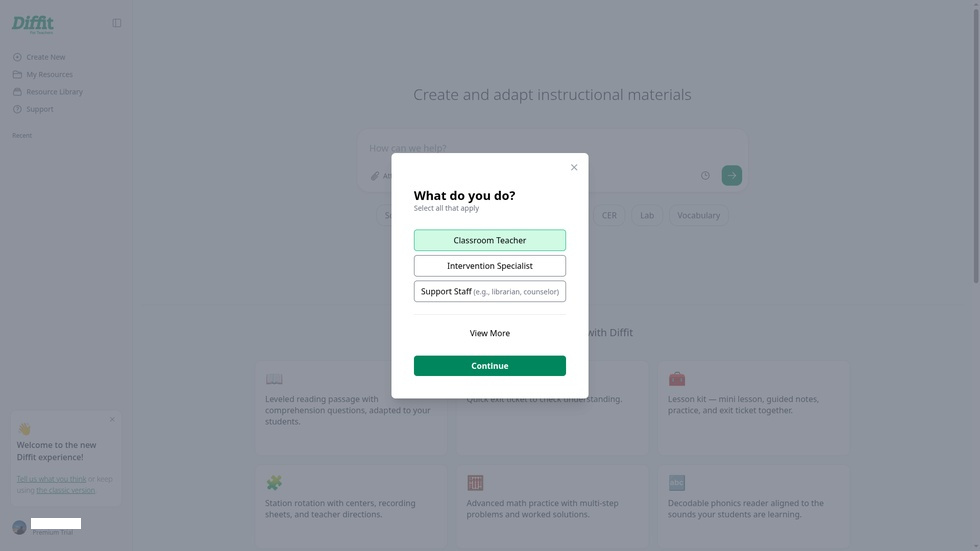
Upon first login, users can personalize their experience by specifying their role within the school, the subjects they teach, and their grade levels. This allows the application's artificial intelligence to provide tailored options and recommendations. These settings can be updated at any time by accessing the user profile menu.
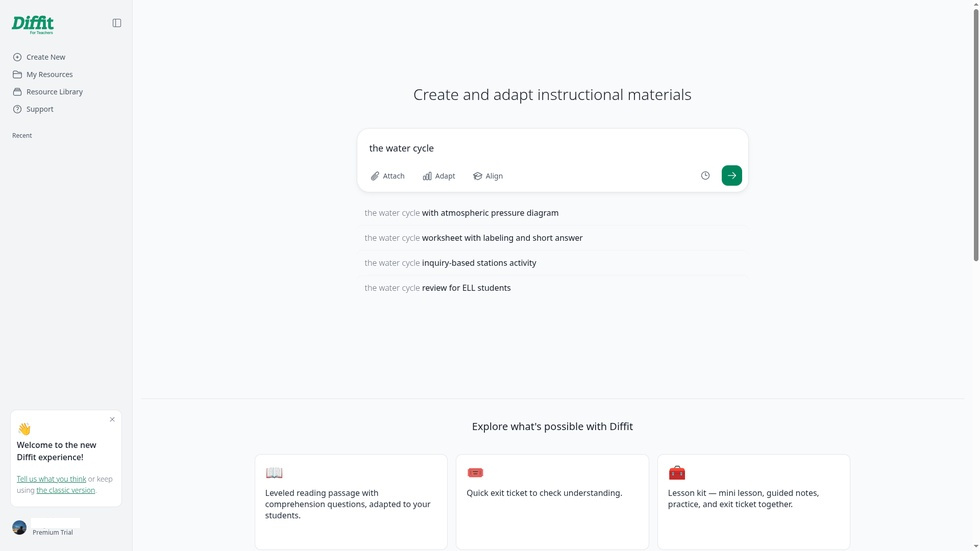
The following image shows the main Diffit workspace. On the left is the navigation menu, which allows users to start a new project ('Create New'), access previously created personal assets ('My Resources'), or browse the platform's shared library ('Resource Library'). In the center of the page is the input bar: by typing a topic (such as 'the water cycle' in the example), the system displays a list of autocomplete suggestions to specify the desired type of activity. Through the options built into the bar ('Attach', 'Adapt', 'Align'), users can attach PDF files (up to 10MB), images (up to 5MB), or web links; select specific chapters from an archive of over a thousand books; define the reading level, language, and tier of instructional support (MTSS Tier); and align the content with specific educational standards. Finally, the lower section features quick buttons that suggest predefined project templates, ranging from science lab activities and advanced math practices to complete substitute lesson plans and vocabulary worksheets.
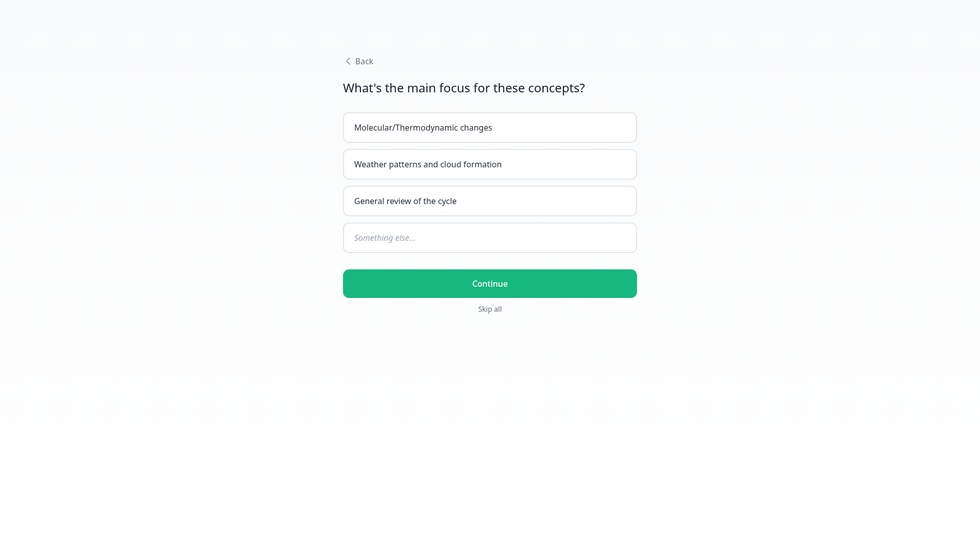
Once the initial input is submitted, the platform guides the user through additional configuration screens to refine the instructional materials. During this phase, the system asks targeted questions to define the pedagogical goals of the project, such as specifying the main focus of the concepts, how students will use the worksheets, the most appropriate reading level for the assessment, and the expected duration of the activity. For each of these prompts, teachers can easily select one of the predefined options suggested by the interface or enter a free-text response to guide the artificial intelligence even more precisely.
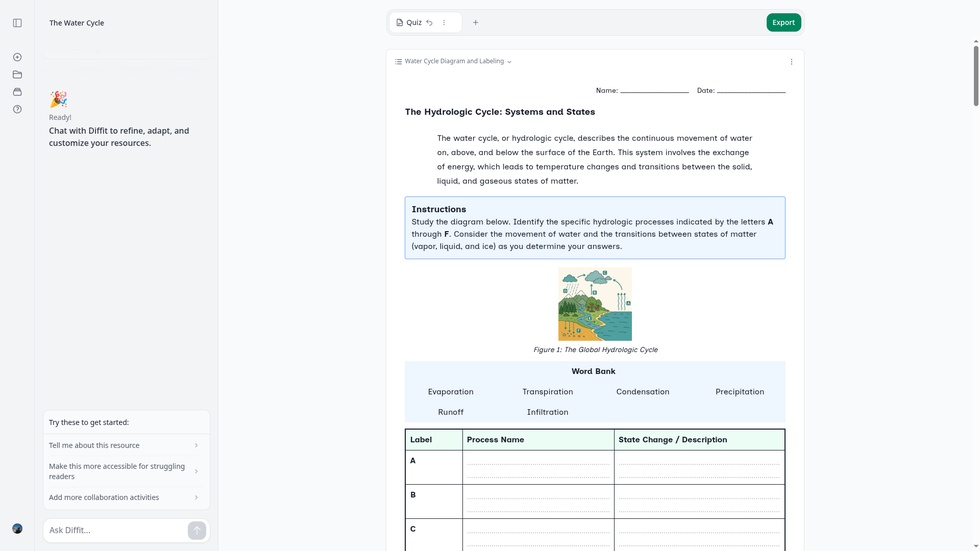
This screen displays an example of the instructional material generated by the application (in this case, an interactive worksheet on the water cycle). From here, teachers can review the output, edit it manually, or use the Diffit chat assistant—located in the left panel—to further refine, adapt, and customize the resource. Once satisfied with the project, the 'Export' button in the top right corner allows users to download the resource as a PDF, print it, or integrate it directly into external platforms like Google Docs, Google Classroom, or Microsoft Word.
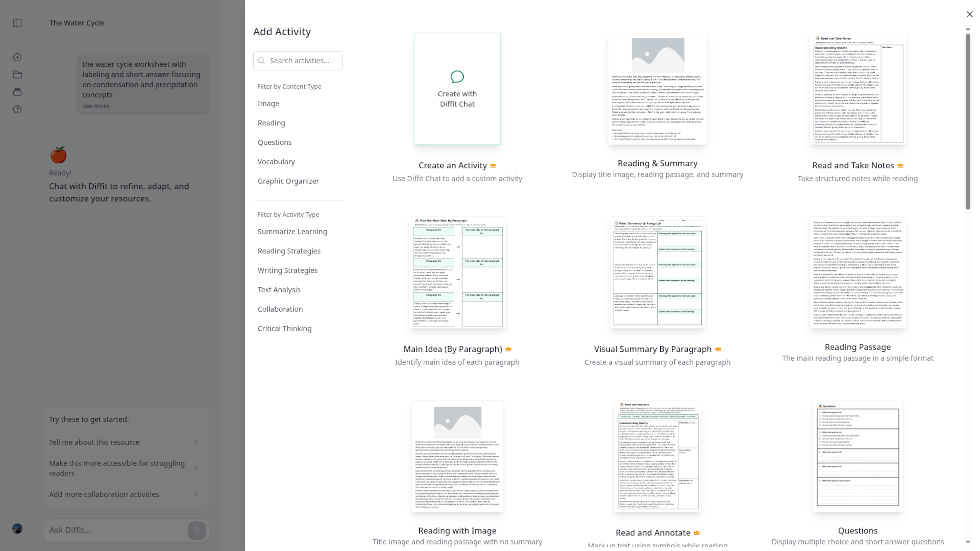
This image shows the 'Add Activity' pop-up menu, which can be opened directly from the workspace to expand the project. This section provides an extensive archive of ready-made templates and predefined activities, easily filtered by content type (images, readings, graphic organizers) or pedagogical goal (writing strategies, text analysis, critical thinking). By selecting one of these templates, the artificial intelligence automatically generates and integrates the new exercises based on the previously created text.
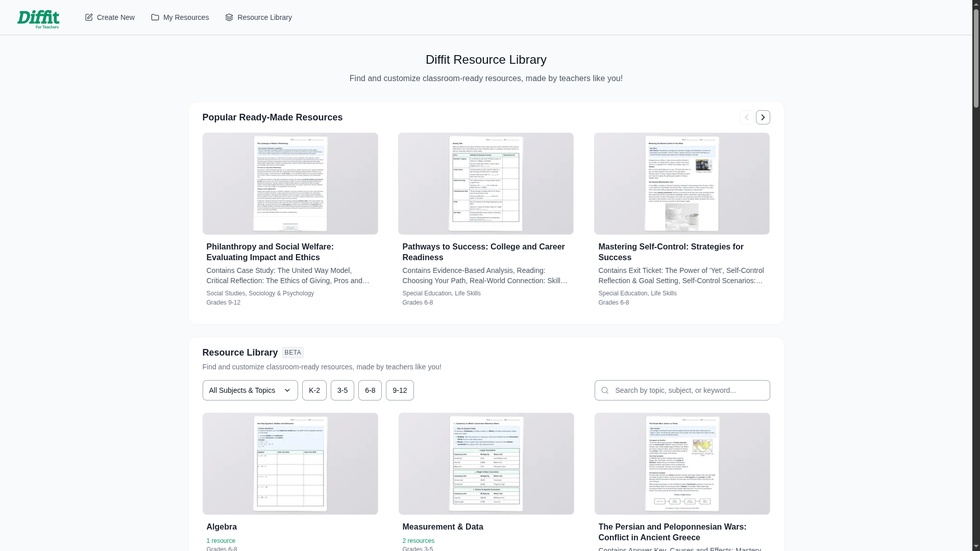
The following image shows the shared resource library provided by Diffit. From this section, users can search for educational resources by directly entering a topic, subject, or keyword, or by filtering results by subject, topic, and grade level. The materials in the archive can be saved and used as they are, or imported and edited within the user's personal workspace to best adapt them to specific educational needs.
Diffit can be used in educational contexts to:
A.I. toolsDesigning & PlanningChatBots & virtual assistantsMind mapsInfographicsQuizzes, forms, surveys 0/5
5
0/5
5
0/5
5
0/5
5
0/5
5
0/5
5
0/5
5
0/5
5
0/5
5
0/5
5
 Add comment









Copy link