


Enter all the desired criteria: the apps that satisfy them all will be searched; if a criterion is specified multiple times, only the last occurrence will be considered.




























































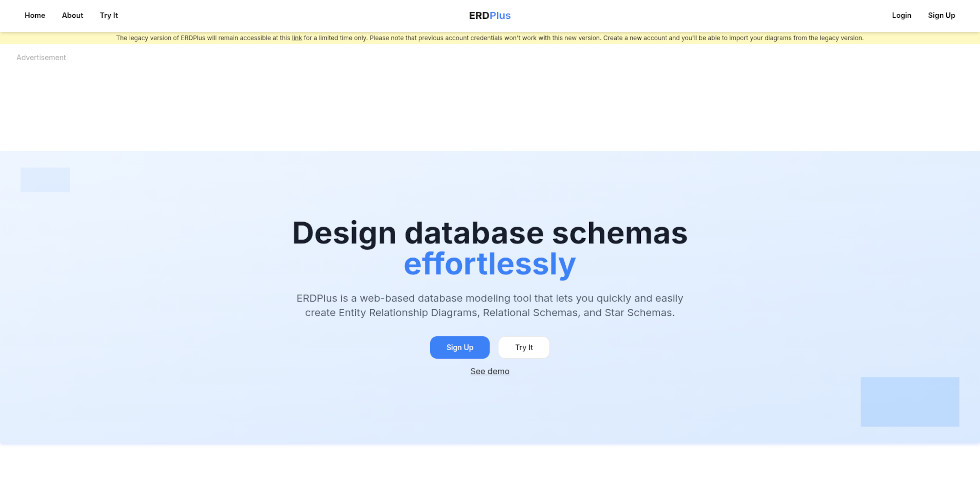
This is the ERDPlus homepage. From here, you can create a free profile or jump directly into the workspace without registering by clicking the 'Try It' button. Scrolling down the page, you'll find brief descriptions of the main features, each accompanied by short demo videos showing practical examples of how to use the tool.
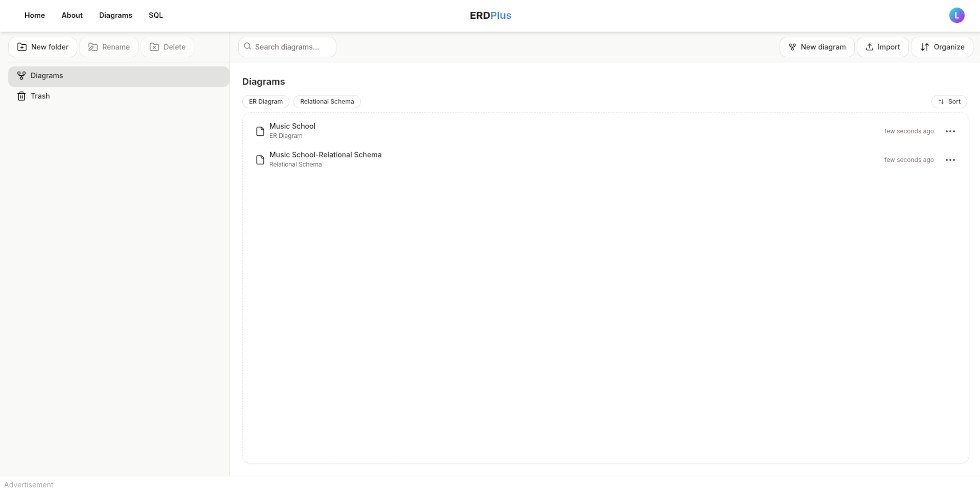
This is the ERDPlus dashboard, which serves as the central hub for project management. From here, you can view, create, rename, and organize both ER diagrams and relational schemas into folders, as well as import locally saved files. Through the context menu of an ER diagram, users can export the file or start the automatic conversion into a relational schema. For relational schemas, the menu provides a feature for automatically generating SQL code that defines the database structure. Clicking on a project name opens the dedicated workspace for editing content.
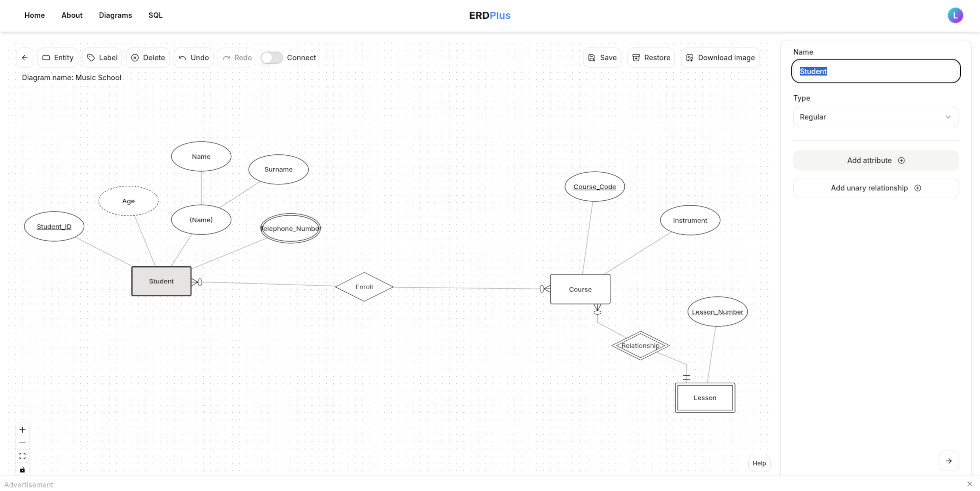
This is the workspace for ER diagrams. Thanks to a simple drag-and-drop system and a set of buttons, you can create your diagrams intuitively. The environment allows you to design all standard ERD components (entities, attributes, and relationships), with support for weak entities, composite attributes, and cardinality constraints. It follows standard industry notation in both terminology and visual representation. You can also save the diagram image locally in .png format.
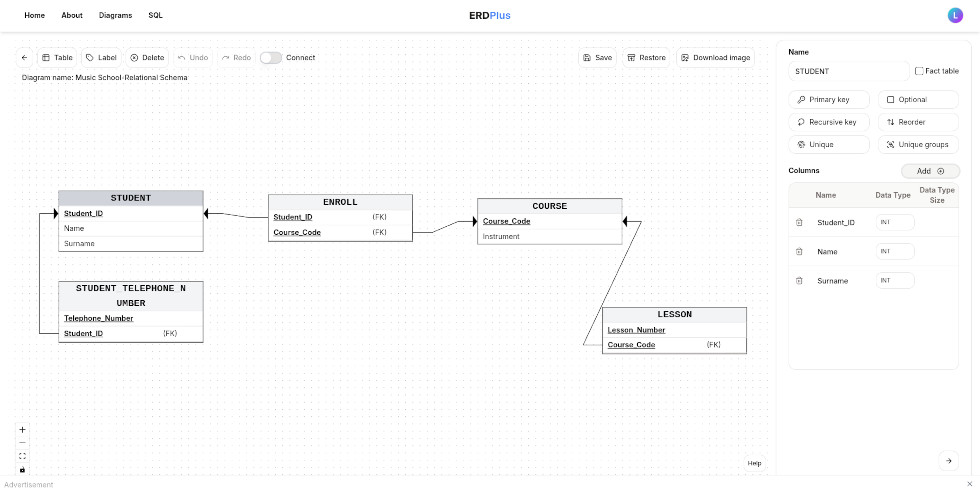
This is the workspace for relational schemas. Here as well, thanks to a simple drag-and-drop system and a set of buttons, you can intuitively create your schemas using tables, primary and foreign keys, and by defining referential integrity relationships through simple drag-and-drop actions. The components of the Star Schema, including fact and dimension tables, are clearly distinguishable to ensure better readability. You can also save the schema image locally in .png format.
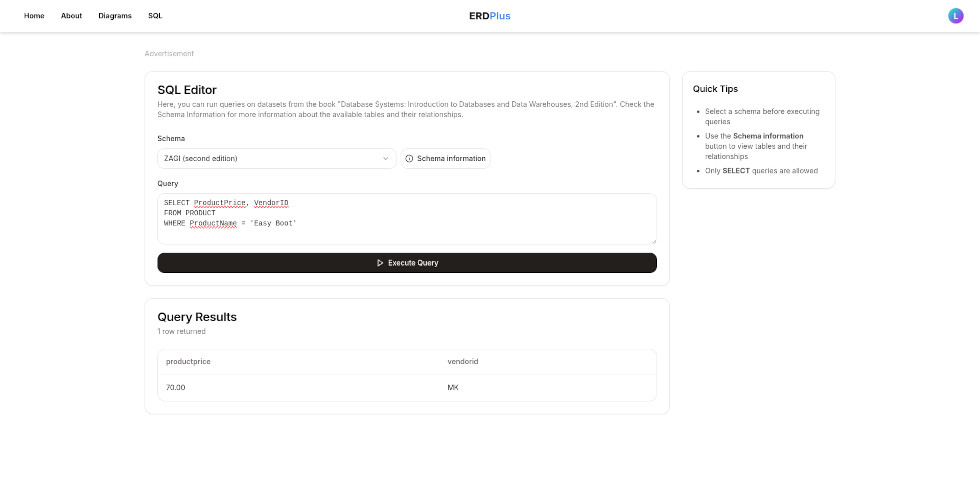
By selecting the 'SQL' button from the top navigation bar, users can access a dedicated area for practicing SELECT queries. Within this section, it is possible to work with five different pre-defined datasets. By clicking on 'Schema information', users can view the structure and relationships of the chosen database at any time to guide their coding process.
ERDPlus can be used in educational contexts for:
 0/5
5
0/5
5
0/5
5
0/5
5
0/5
5
0/5
5
0/5
5
0/5
5
0/5
5
0/5
5
 Add comment









Copy link