


Enter all the desired criteria: the apps that satisfy them all will be searched; if a criterion is specified multiple times, only the last occurrence will be considered.



























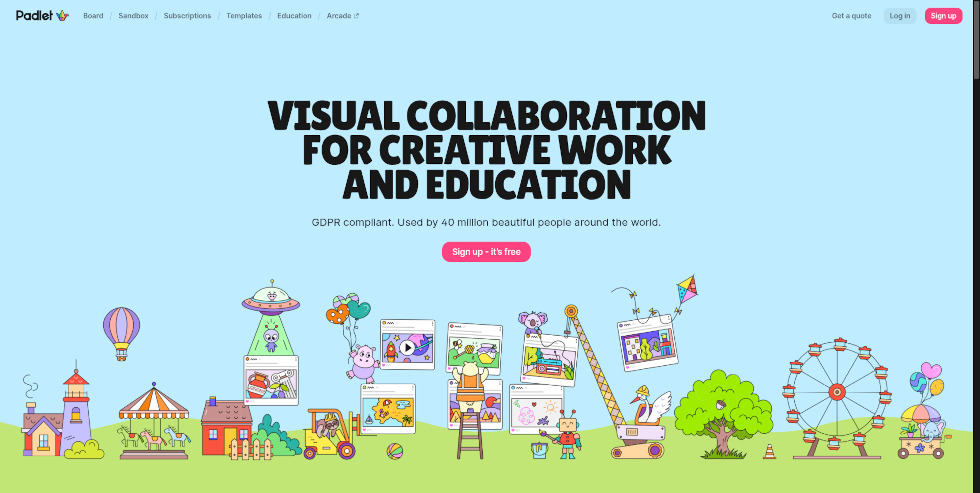
This is the app’s homepage, where users can sign up or log in. By scrolling down, or by using the navigation bar at the top (such as “Board,” “Sandbox,” and “Templates”), users can view slideshows featuring examples of already created content.
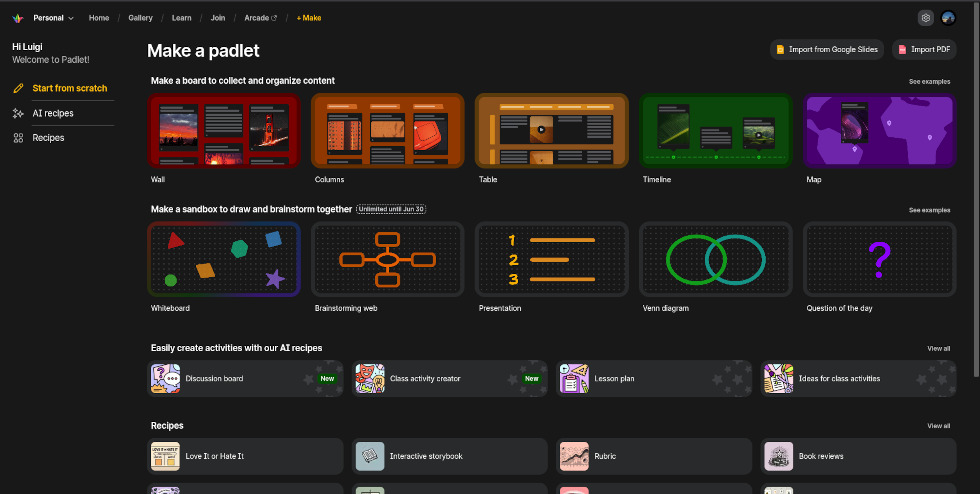
This is the '+ Create' section, where you can build a Padlet or a Sandbox from scratch or by using a preset template; you can also generate a custom activity using AI. At the top right, there are buttons to import files directly from Google Slides or PDFs. The top navigation bar includes: 'Home', to view and organize your work; 'Gallery', to search for templates by filtering them by grade level and purpose; 'Learn', which features a collection of tutorial videos; 'Join', to access a board via a link; and 'Arcade', which links to a sister site for creating educational games.
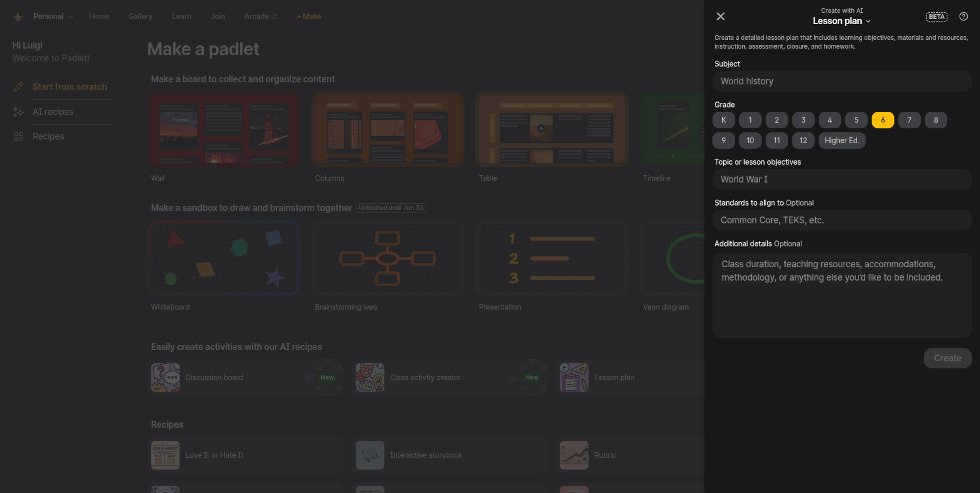
This is the AI-powered creation format for a Padlet or Sandbox. In this example, a lesson plan is being generated by entering the subject, the target grades, the topic or educational objectives, and optionally, reference standards or additional details. Similar formats are available for creating educational activities, discussion boards, timelines, polls, and more.
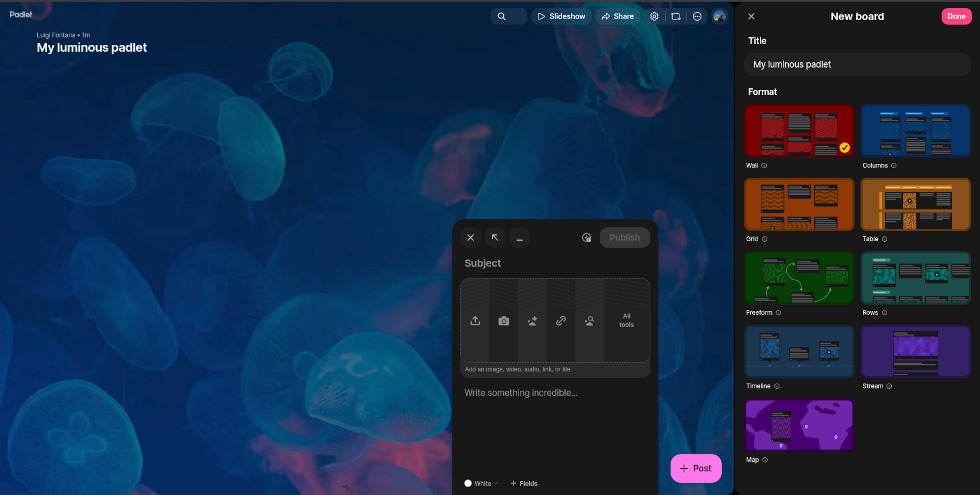
The following is the editing screen where users create and customize virtual boards. Using the '+ Post' button, various contents such as images (including AI-generated ones), videos, GIFs, files, and links can be added, accompanied by text notes. Settings allow for the customization of the appearance, layout (wall, grid, timeline, etc.), post ordering, and fonts. Users can schedule posts, organize them chronologically, or move them freely using 'drag and drop'. The app allows for managing comments and reactions, monitoring activities with an AI that identifies inappropriate content, while still allowing manual control. Finally, the work can be displayed using the 'Slideshow' mode.
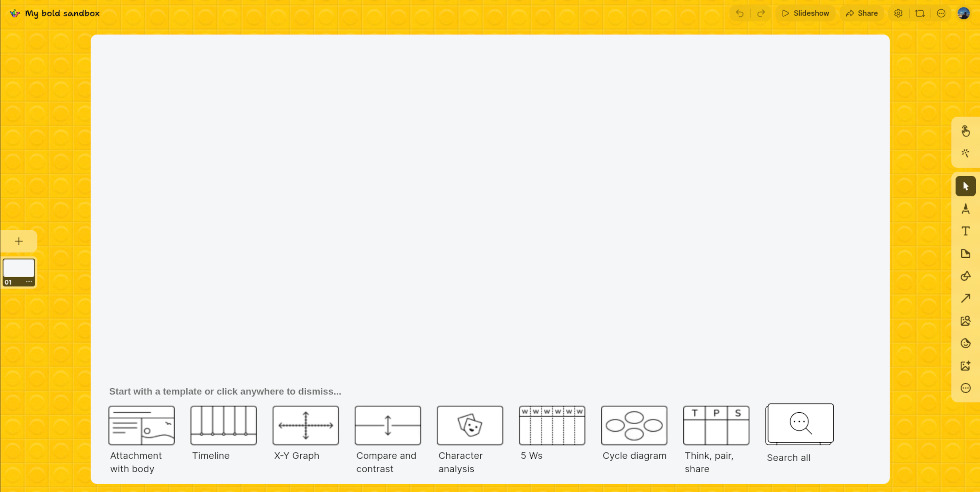
The following is the editing screen for Sandboxes. The main difference compared to boards is that the space is organized into individual pages; on the left of the workspace, you can view existing pages and add new ones. By allowing the insertion of hyperlinks between cards, Sandboxes enable the creation of interactive narratives and basic quizzes. At the bottom, several starting templates are suggested (such as concept maps or tables), while on the right is the toolbar for writing, drawing, inserting shapes, images (including AI-generated ones), videos, polls, and interactive content.
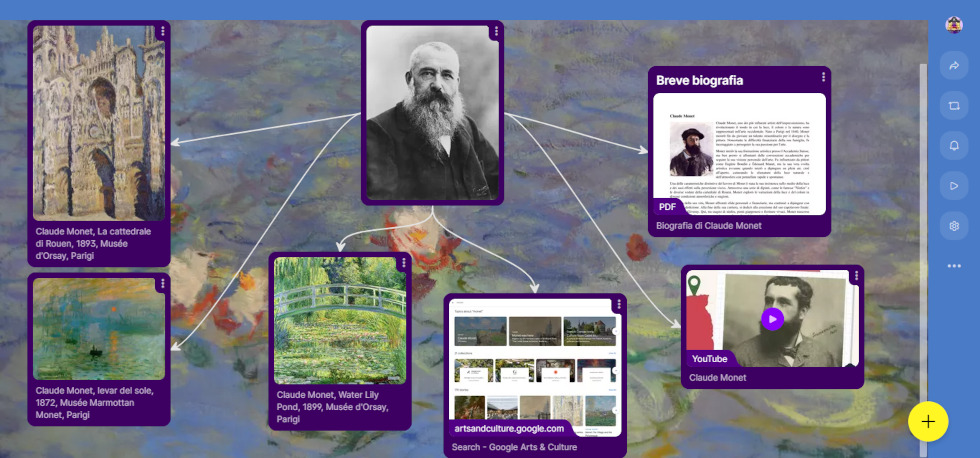
Below is an example of a virtual notice board generated with Padlet for the organisation of a lesson on the French painter Claude Monet. You can see how within the same space, multiple information can be shared in different formats to make learning more interactive. Sharing is possible through the generation of a customised URL, a QR code or in the form of a presentation. Padlet offers the possibility of defining contributor roles and setting access restrictions, making the board private or restricting access only to those with a specific link. Users can share work via e-mail, Facebook, Twitter, Zoom and Google Classroom. Once finished, notice boards can be exported as an image, Excel file, PDF or CSV format.
Padlet is an app that can be used in education to
 Collaboration & CommunicationContent collectorsShared whiteboardsLink collectors
 StorytellingA.I. tools
 Groups management
 4.4/5
4.4/5
 5
4.5/5
5
4.8/5
5
4.7/5
5
3.7/5
5
5
4.5/5
5
4.8/5
5
4.7/5
5
3.7/5
5
 Add comment











Copy link