


Enter all the desired criteria: the apps that satisfy them all will be searched; if a criterion is specified multiple times, only the last occurrence will be considered.

























The home page presents some data and some of the platform's features.

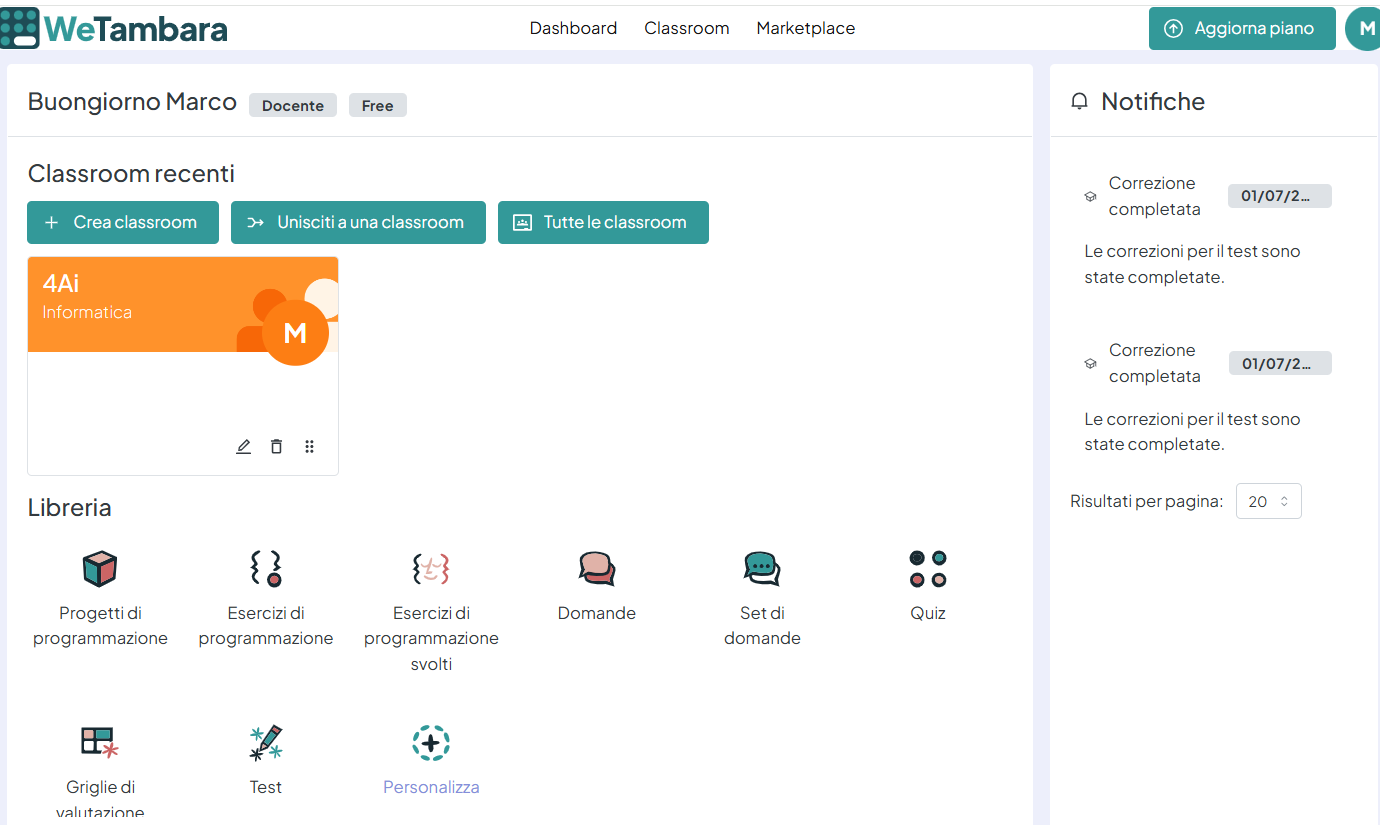
Once you've logged in, the dashboard lets you access the products you've created previously, organized by category.
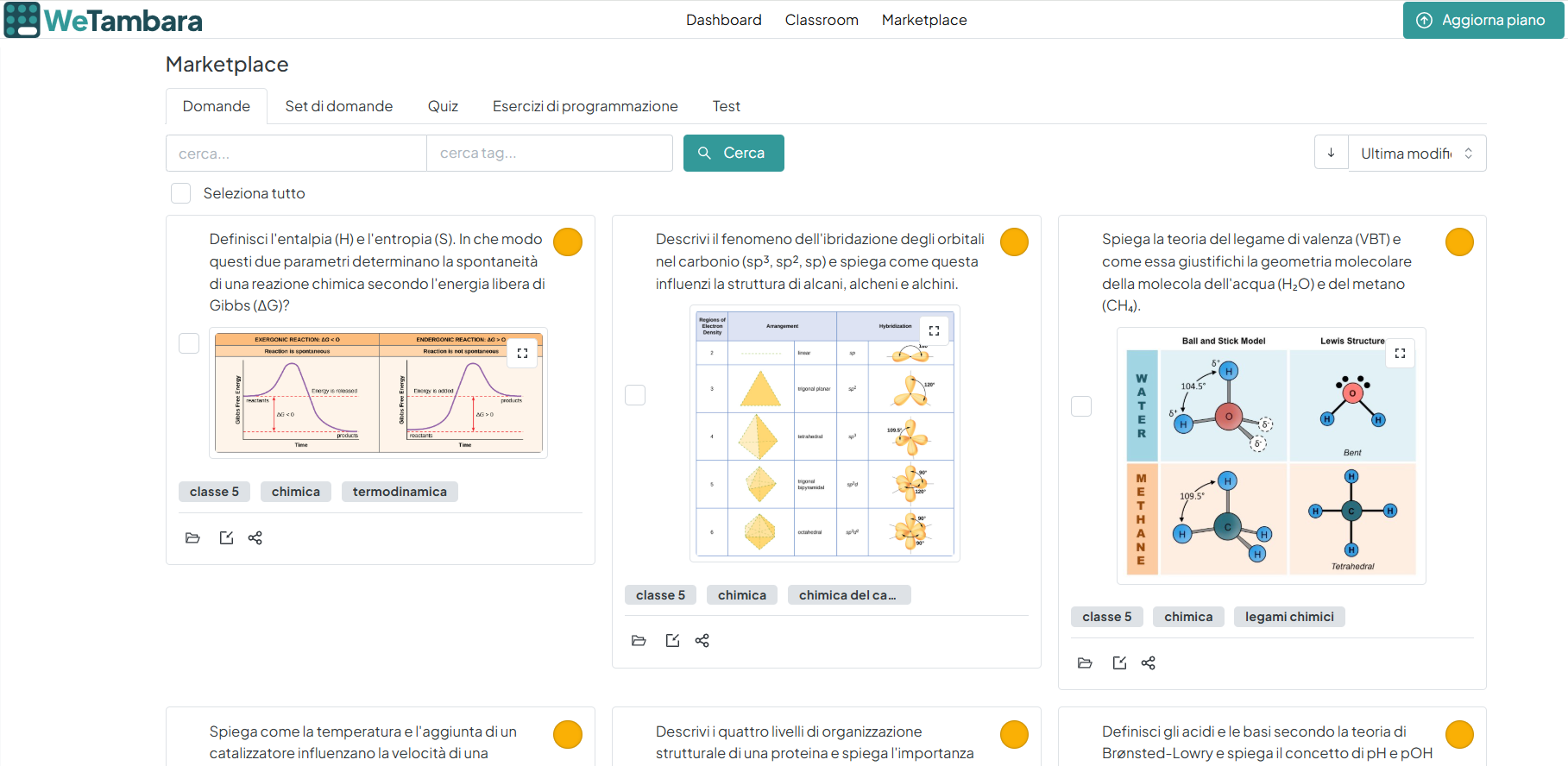
It’s worth starting by exploring the “marketplace”—a catalog of products created by platform users and marked as public. There’s a wide variety of products available, including exercises, questions, question sets, quizzes, and tests, which can be imported into your dashboard and then customized. The image below shows some of the questions available in the marketplace; they are marked with a circle whose color indicates the difficulty level (from green = easy to red = difficult). Below each box, three icons allow you to, respectively: access the content, import the question into your dashboard, and share it immediately with colleagues or students (in this case, without the ability to monitor their activity).
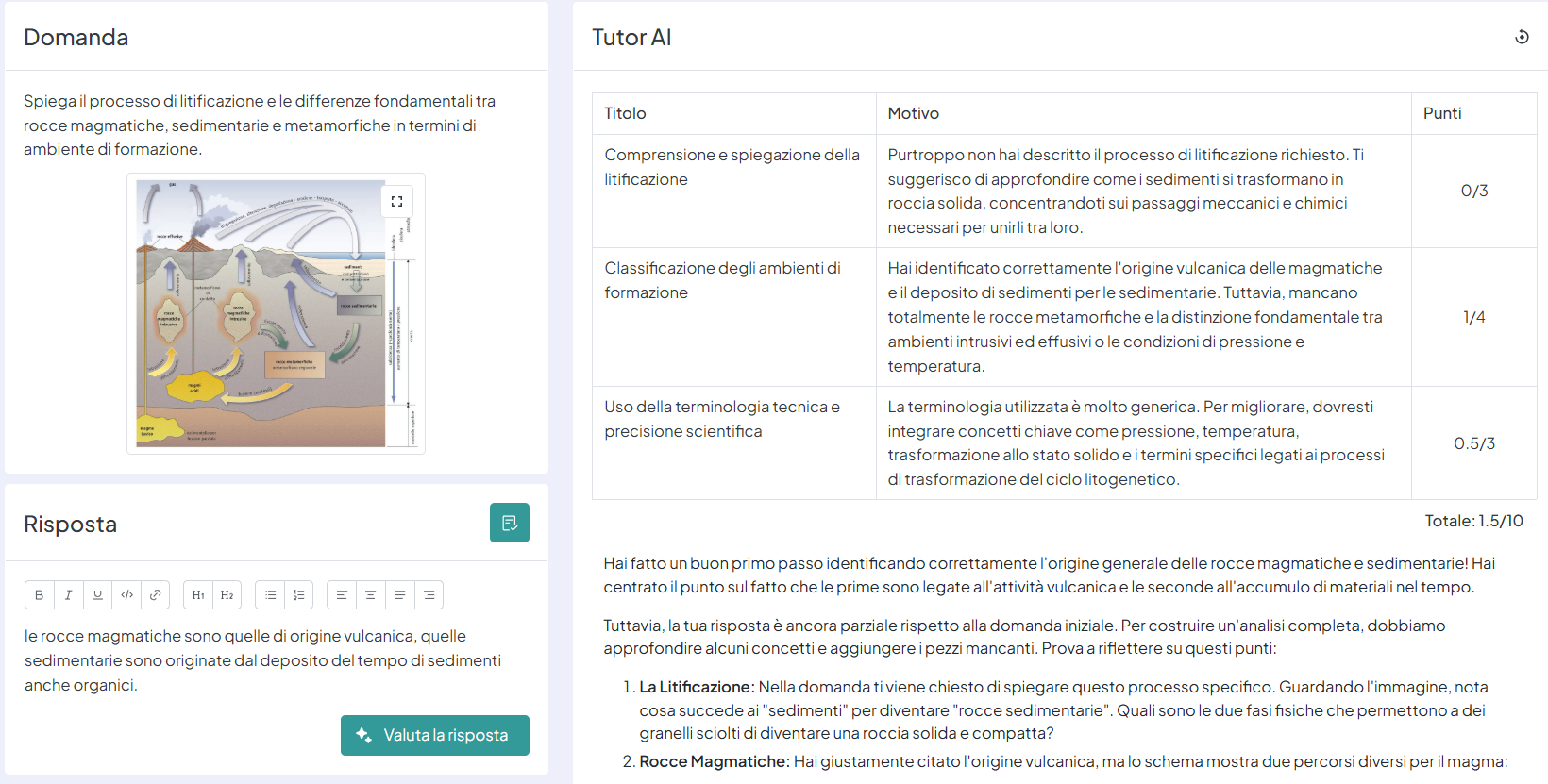
When you open the preview, you will see the question along with any associated multimedia content, and you can try to answer it, as shown in the figure below, where an incomplete answer has been intentionally entered. Clicking on “Valuta la risposta” on the right will display AI-generated feedback showing an evaluation table and a list of suggestions on areas to explore further to improve your answer. The evaluation process can be repeated as many times as needed until a satisfactory result is achieved.
In addition to questions, the platform also offers multiple-choice quizzes, programming exercises, and tests: the latter are collections of items—including different types—organized in sequence and assignable to classes as described below.
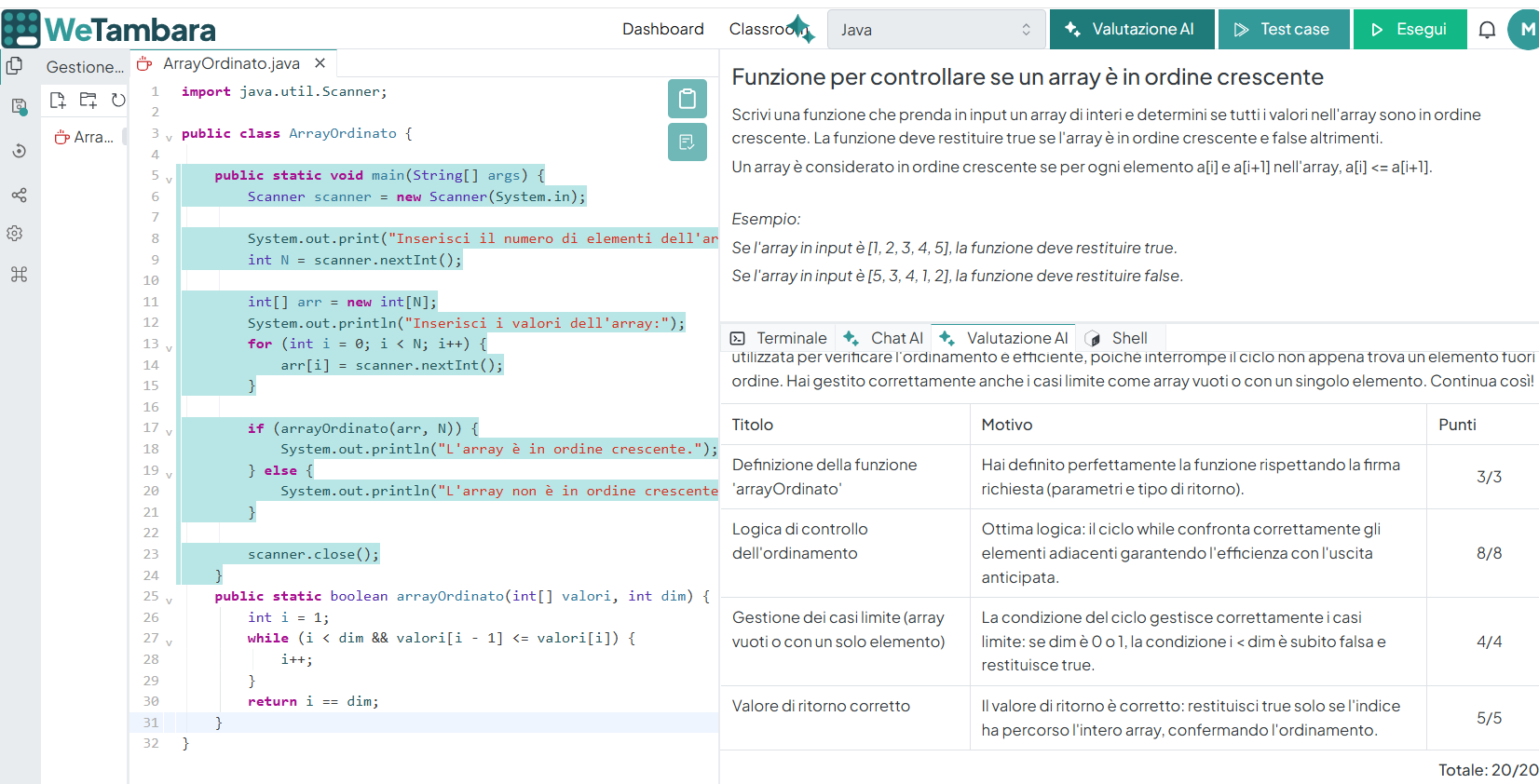
The platform is particularly effective for computer science and, in particular, for teaching programming through specific exercises that, as shown in the figure below, provide some guidance to help students complete them:
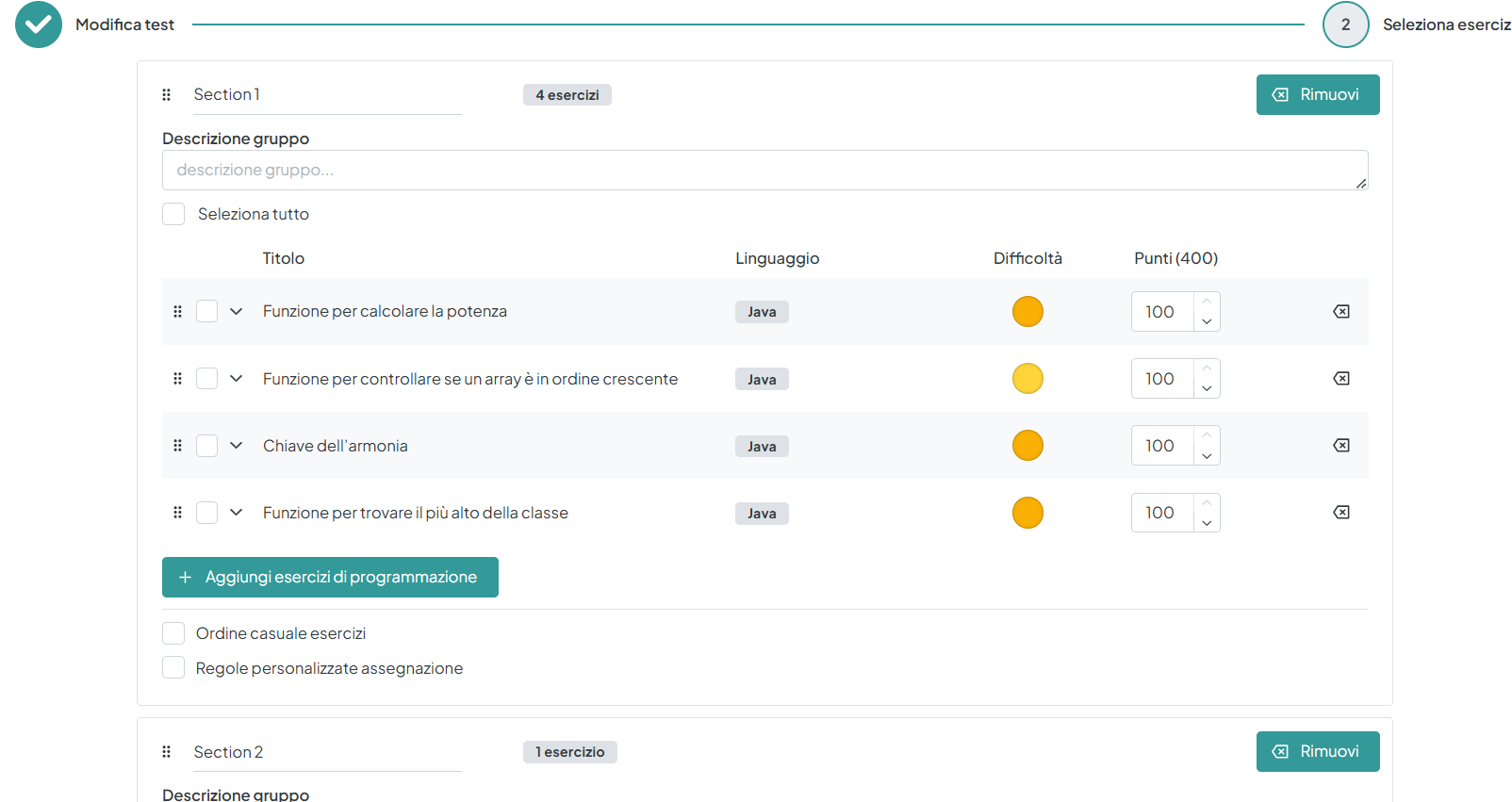
If you want to monitor students’ progress on the exercises and their answers to the questions, you’ll need to include them in a test that allows you to group the activities into one or more sequences, as shown in the image below. You’ll also need to set up a “classroom,” a virtual space where you can invite students and assign activities. For each test, the instructor can review students’ answers to the questions and their completed exercises, and can also use an AI-generated automatic assessment—which the instructor can still correct and comment on.
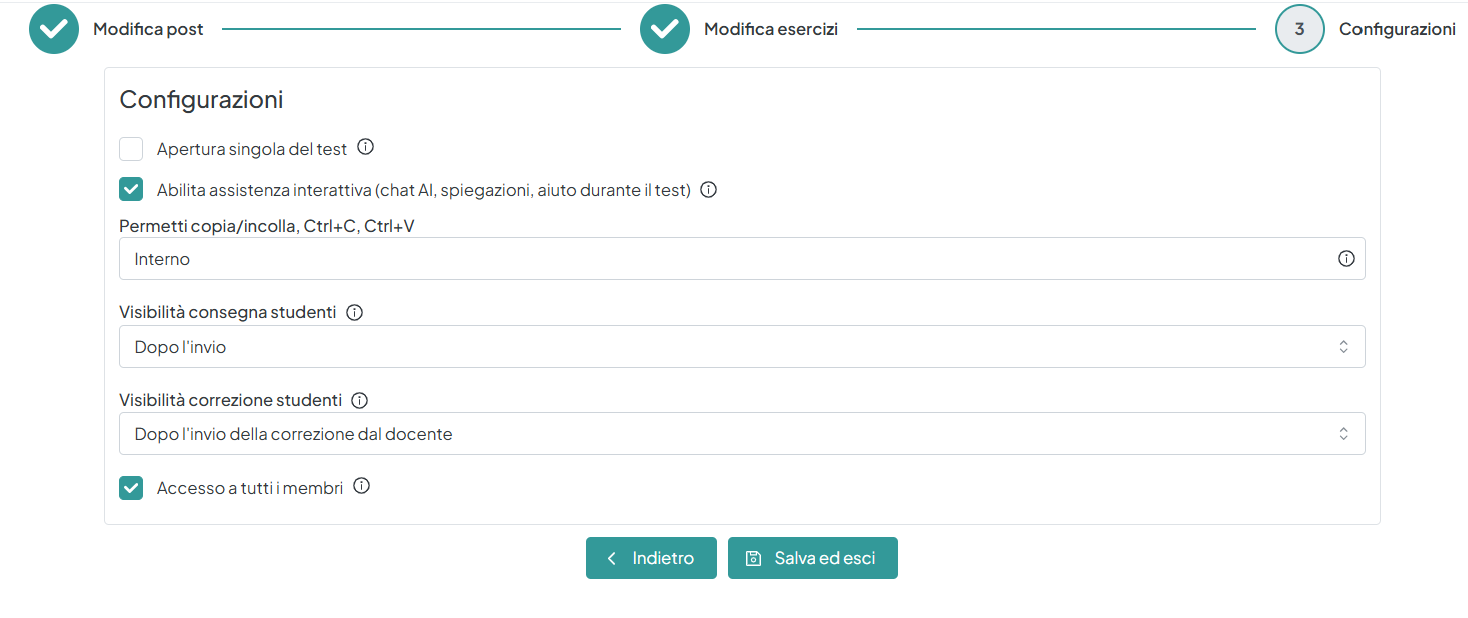
When assigning a test to the class, you can configure certain settings to control how the exercises are completed, such as the option to use AI as a tool, disabling copy-and-paste when entering answers, the visibility of corrections, and the recipients of the assignment.
 OthersApp & CodingSteam
 Collaboration & CommunicationChatBots & virtual assistants
 Groups managementAssessment rubrics
 5/5
5/5
 5
5/5
5
5/5
5
5/5
5
5/5
5
5
5/5
5
5/5
5
5/5
5
5/5
5
 Add comment









Copy link