


Enter all the desired criteria: the apps that satisfy them all will be searched; if a criterion is specified multiple times, only the last occurrence will be considered.




























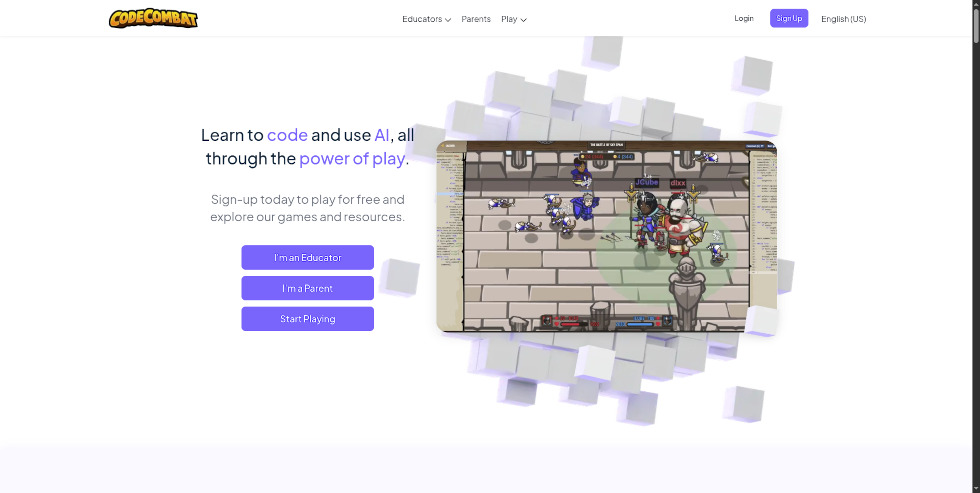
This is the CodeCombat homepage. From here, you can log in or sign up by selecting your profile as an educator, parent, or student.
Through the 'Teachers' dropdown menu, instructors can consult a comprehensive overview of the services offered and access educational materials for their lessons. By clicking on 'Play' or the 'Start Playing' button instead, students can immediately test some of the learning paths provided by the platform or join a specific class by entering the code shared by their teacher.
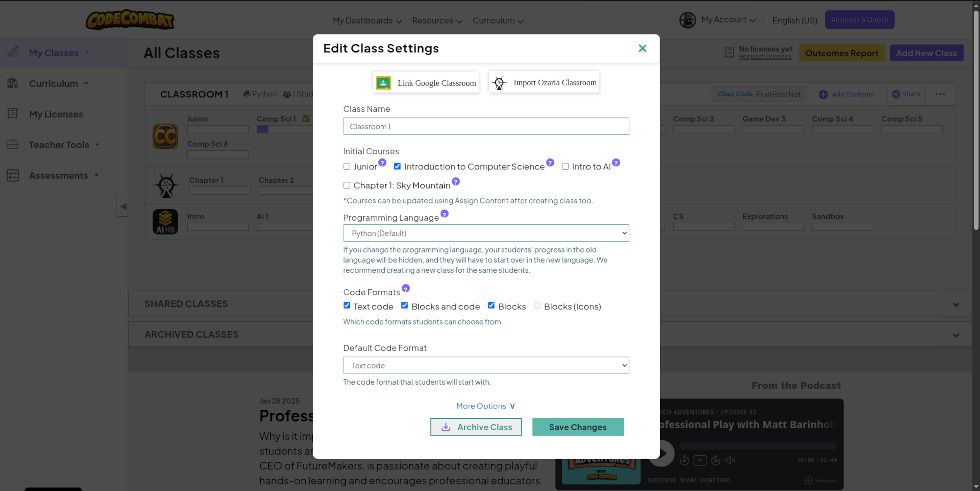
This is the virtual class creation screen. From here, you can define the Class Name, select the learning paths to assign, and choose the reference programming language. Additionally, the teacher can configure the code writing mode, deciding whether to restrict the class to either the text-based or block-based interface, or allow the student to choose freely between the two. Finally, the platform enables direct integration with Google Classroom to streamline student management.
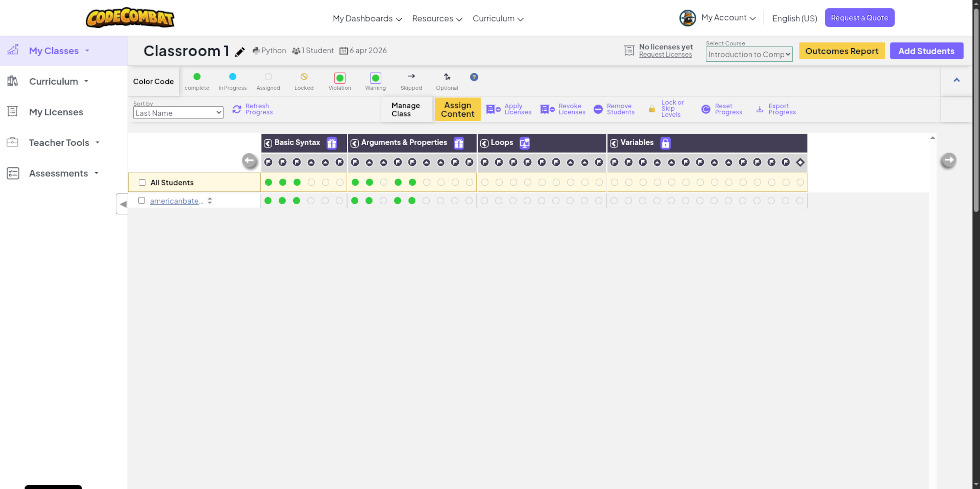
This is the CodeCombat teacher dashboard. From this section, it is possible to manage study groups by adding new students, retrieving the class code or the direct invitation link, and customizing class settings and level assignments.
Through the left sidebar, the teacher can navigate between the different classes created and access essential resources: the 'Curriculum' section contains overviews of the study paths with ready-to-use slides, while 'Teacher Tools' offers additional educational support resources. Finally, the 'Assessments' area allows for granular monitoring of activity: in addition to viewing aggregate class statistics for an overall perspective, it is possible to analyze the time spent by each student and view in detail the specific code written by students to complete the individual levels.
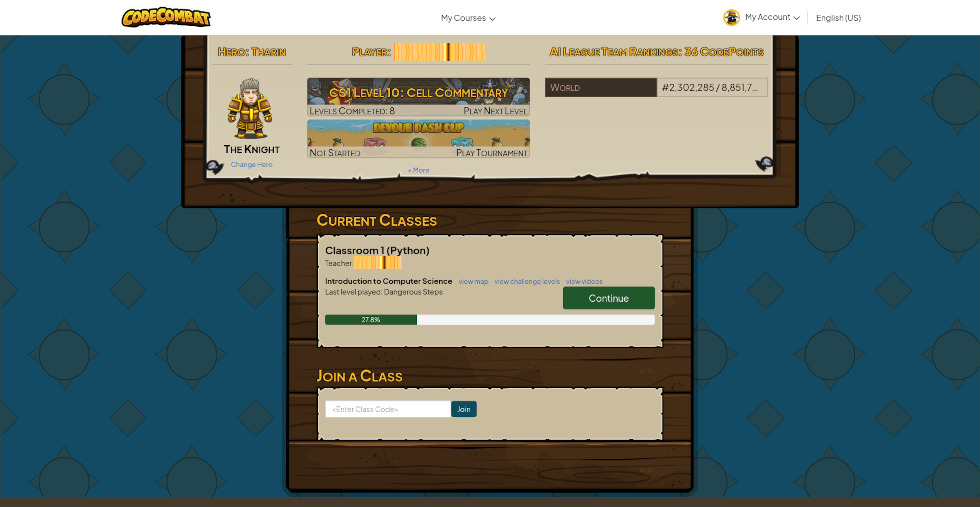
This is the student dashboard, the central area from which users can manage their CodeCombat experience. From here, you can customize your avatar and select the levels to tackle.
The screen provides an overview of the active classes the student is enrolled in and their relative progress; there is also a quick-join feature for new courses via code. Within each class box, direct links are available to explore the game map, view the list of levels, and consult explanatory videos that delve deeper into the programming concepts introduced during the challenges.
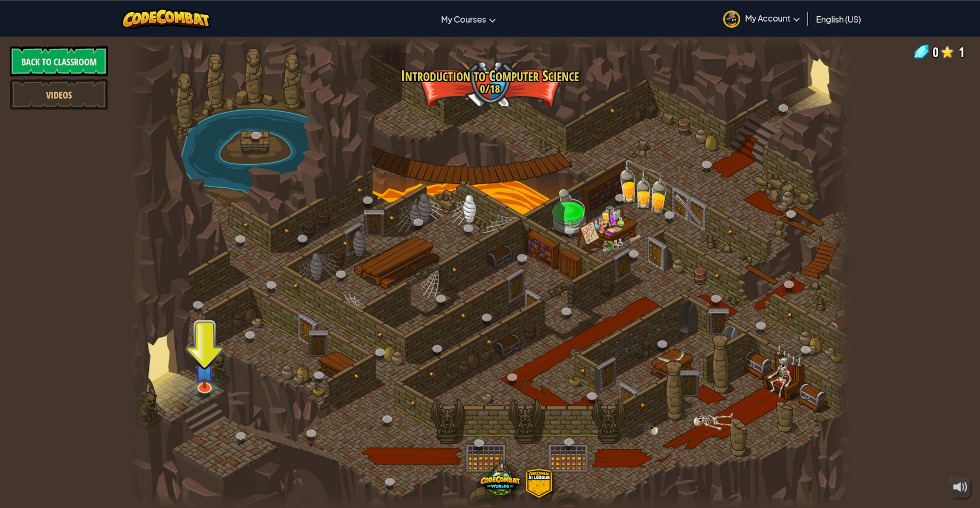
This is the game map from the student's point of view: an interactive interface set in a fantasy world where levels are arranged along a structured learning path. The student can track their progress, return to already completed levels for practice, or move forward to new challenges following the educational sequence suggested by the platform.
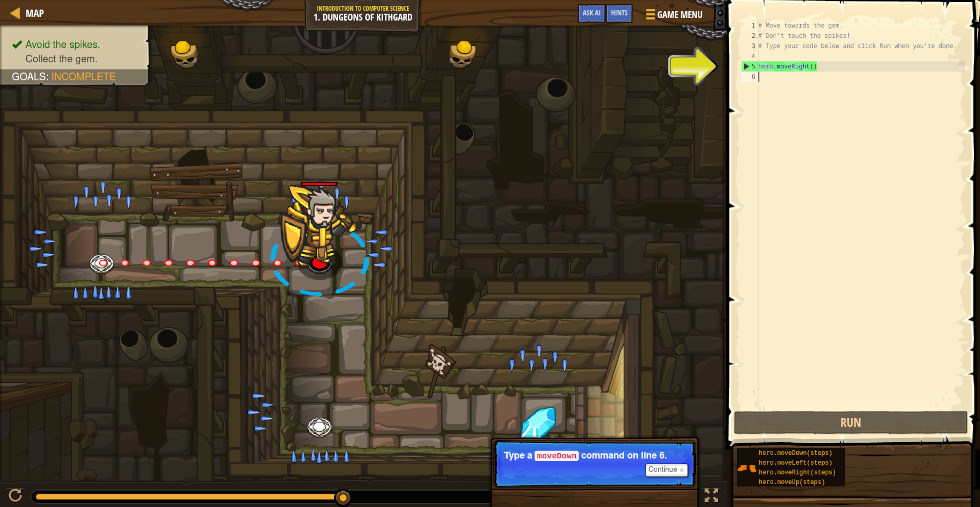
This is the CodeCombat game interface: the screen is divided into two main areas to foster hands-on learning. On the right side, the student writes and executes the source code, while on the left side, they can view in real-time the actions of their character as it moves and interacts to complete the level objectives. In case of difficulty, the platform provides contextual hints and an AI-powered virtual assistant, capable of guiding the user through problem-solving and code debugging.
CodeCombat can be used in educational settings to:
 0/5
5
0/5
5
0/5
5
0/5
5
0/5
5
0/5
5
0/5
5
0/5
5
0/5
5
0/5
5
 Add comment









Copy link