


Enter all the desired criteria: the apps that satisfy them all will be searched; if a criterion is specified multiple times, only the last occurrence will be considered.

























This is the SQL Fiddle homepage. The left sidebar contains the Login button. From the center of the page, you can access the workspace by selecting your preferred database engine, including SQL Server, SQLite, PostgreSQL, MySQL, MariaDB, Oracle, or Oracle PLSQL. It is important to note that AI-powered features, such as the support chat and the query generator, are exclusively accessible after logging in. By scrolling down, the page offers detailed information about the site's maintenance, along with a complete overview of the available functions and the platform's use cases.

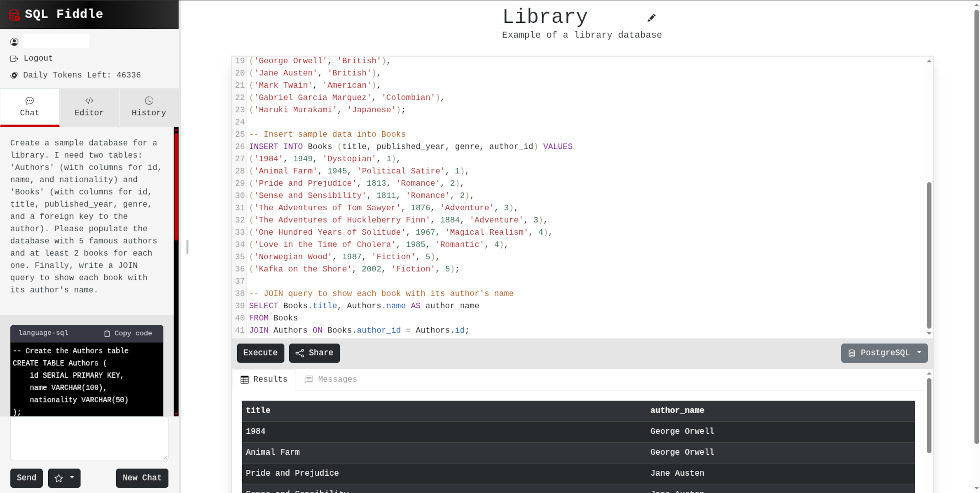
This is the SQL Fiddle workspace. The left sidebar integrates the AI assistant chat, where you can monitor your remaining tokens and submit requests; at the bottom, the star icon activates a quick actions menu, flanked by the 'New Chat' button to reset the conversation.
In the top-center section, the project title and description are displayed (customizable via the pen icon). The main pane is the editor for writing SQL code to create tables, insert data, and query the database; the processed data is then shown in the panel below, within the 'Results' tab.
Between the editor and the results area, the operational commands are located: the 'Execute' button to run the script, 'Share' to generate a link, and the SQL engine selector (in this case, set to PostgreSQL). Finally, on the right margin, there is a vertical bar with buttons for quick sharing via social media and email.
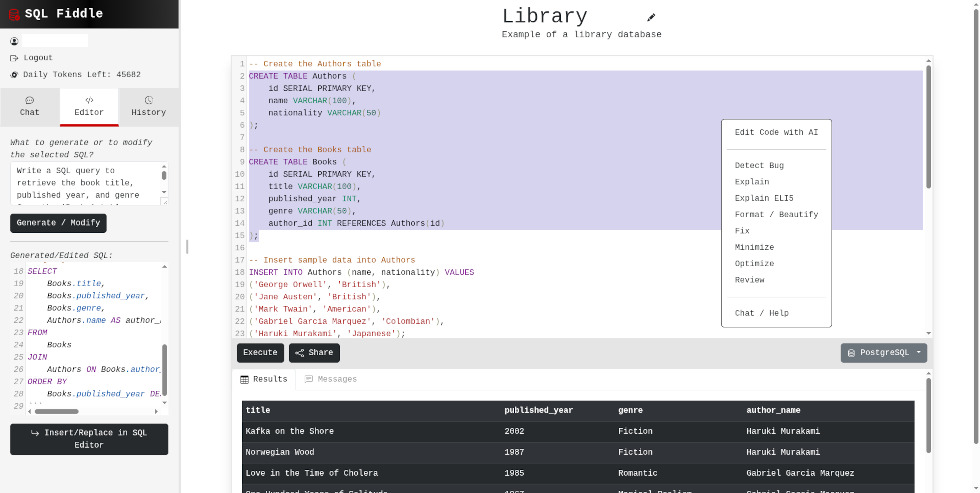
In the 'Editor' section of the left sidebar, it is possible to interact with the code in an advanced manner using the integrated AI tools. By entering a command (prompt) in the left sidebar and clicking 'Generate / Modify', the AI allows for modifying existing code, fixing a query, or generating a new one from scratch based on the provided specifications.
For targeted interventions, a portion of text in the central pane can be selected; then, by right-clicking and choosing 'Edit Code with AI', the artificial intelligence will process the response and display it in the 'Generated/Edited SQL' box. From this area, the result can be integrated into the main editor by clicking the 'Insert/Replace in SQL Editor' button.
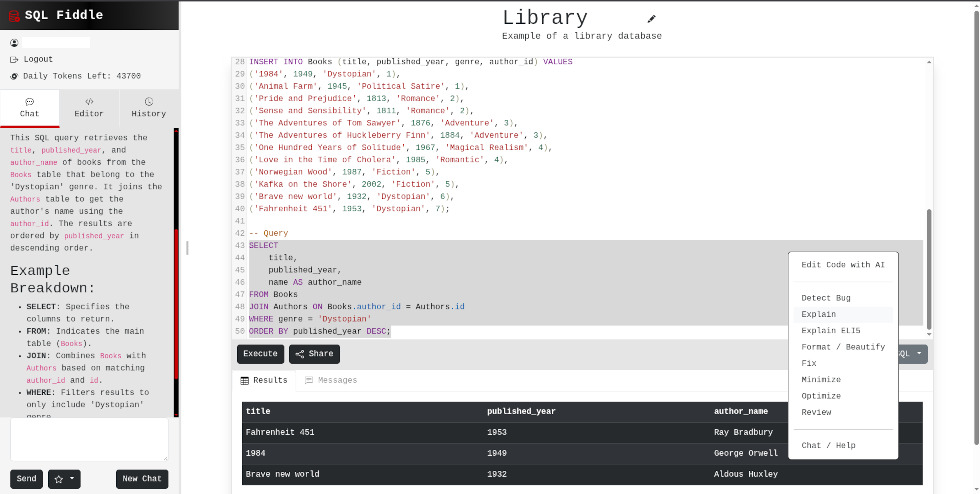
In addition to the 'Edit Code with AI' function, by selecting a portion of code and right-clicking, you can access a contextual menu with several advanced features. Among these are tools for error analysis and correction (Detect Bug, Fix, Review), options for obtaining a detailed explanation of the code (Explain, Explain ELI5), and functionalities dedicated to script optimization and formatting, such as Format/Beautify, Minimize, and Optimize.
SQL Fiddle can be used in educational settings for:
 0/5
5
0/5
5
0/5
5
0/5
5
0/5
5
0/5
5
0/5
5
0/5
5
0/5
5
0/5
5
 Add comment









Copy link