


Enter all the desired criteria: the apps that satisfy them all will be searched; if a criterion is specified multiple times, only the last occurrence will be considered.



























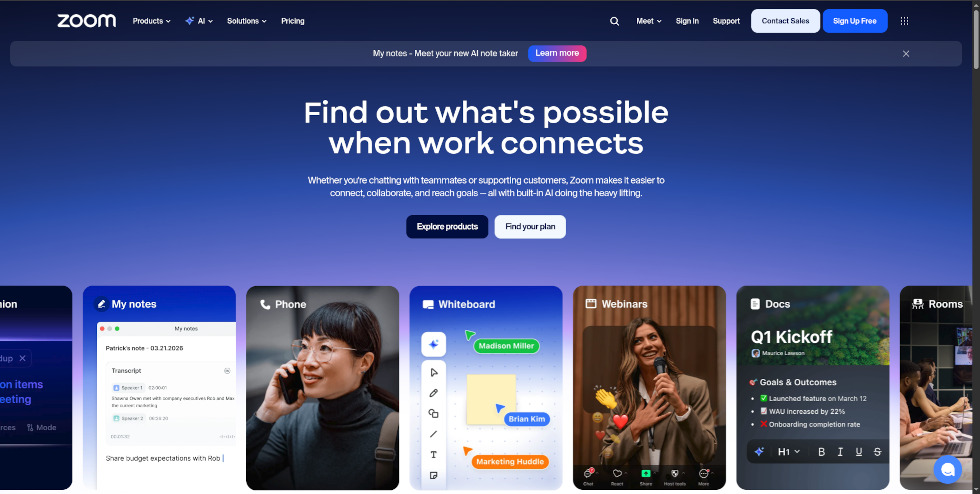
This is the Zoom homepage. In the top navigation bar, you can quickly access key features: the 'Meet' menu allows you to join an existing meeting or host a new one, while the 'Log In' and 'Sign Up Free' buttons let you access your profile or create a new account.
The central section highlights the platform's product ecosystem, showcasing tools for both teaching and professional collaboration: from Whiteboards and Webinars to the new Zoom Docs for collaborative writing and Clips for asynchronous video messaging.
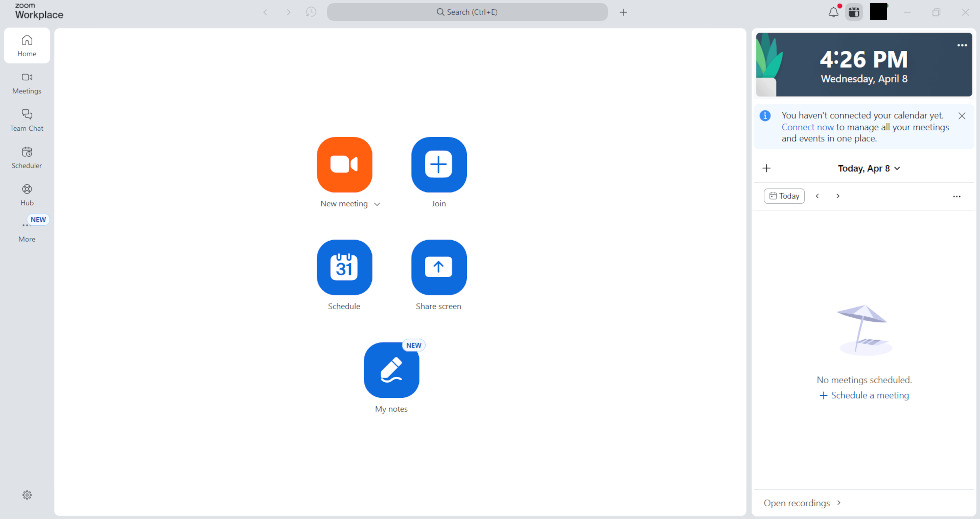
The following is the Zoom Workplace desktop home screen. The interface features four central action buttons: 'New Meeting' for starting instant sessions, 'Join' for entering rooms via Meeting ID or Personal Link, 'Schedule' for planning future lessons, and 'Share Screen'. The 'My Notes' feature is also integrated for quick annotations.
The left-hand navigation bar provides rapid access to various workspaces, including Meetings, Team Chat, Scheduler, and the Hub, which houses collaborative resources like documents and whiteboards.
To the right, a collapsible side panel displays the current time and a daily activity calendar. This section allows for the integration of external services, such as Google Calendar or Microsoft Outlook, to automatically synchronize all scheduled commitments.
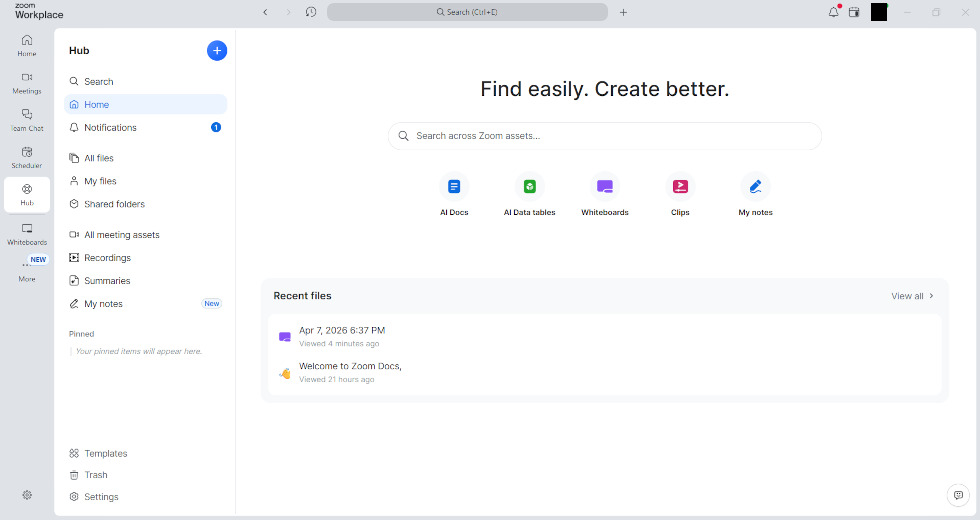
This section is the user's central Hub, a dashboard designed for quick access to all personal resources. It allows for the management of notifications and the consultation of files, shared folders, and notes, as well as the review of recordings and AI-generated meeting summaries.
In the center of the screen, shortcuts enable the instant creation of new content such as documents, whiteboards, clips, and notes. The bottom section is dedicated to recent file history, allowing for a seamless return to the latest activities and tasks.
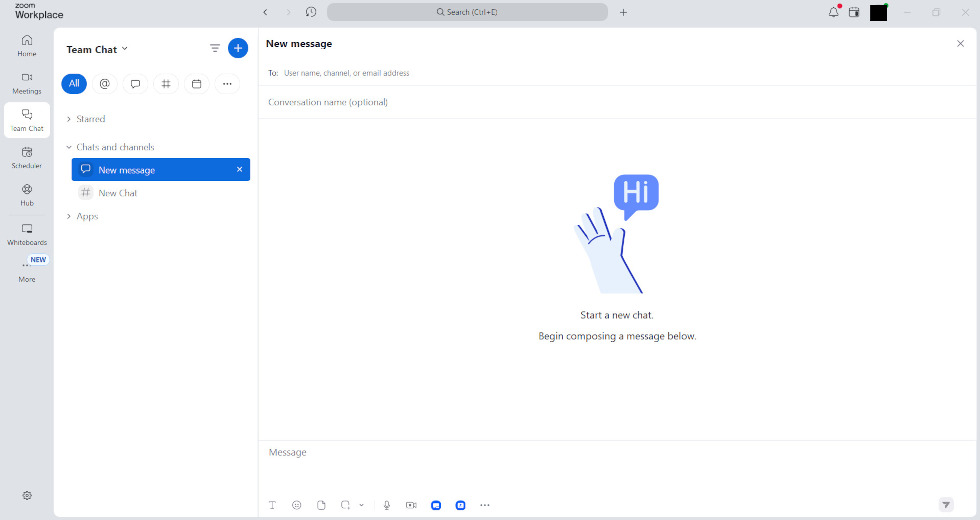
This is the Team Chat section, a messaging environment for initiating private conversations or creating thematic channels (public or private) for classes and workgroups. Beyond standard text messaging, the interface allows for file sharing, voice messages, and the creation of video Clips.
With AI Companion integration, long discussions can be summarized and response drafts can be generated automatically. Furthermore, an instant video call can be launched with chat participants by clicking the camera icon, enabling a seamless transition from text to video.
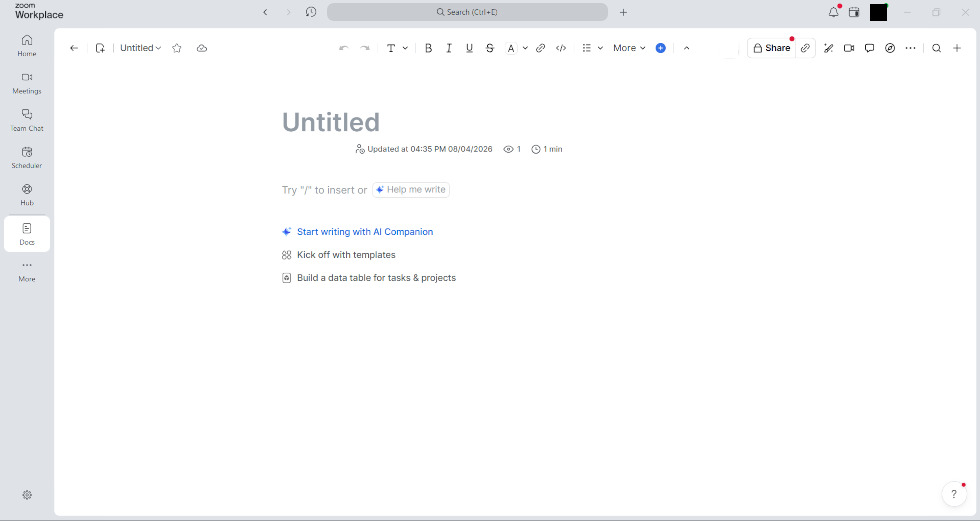
This is the Documents section, an area dedicated to creating and managing text content and advanced tables. To get started, a variety of predefined templates is available, designed for specific contexts such as meeting minutes, project plans, or lesson agendas.
A key feature is the integration with AI Companion, which acts as a writing assistant: it can generate drafts from simple prompts, summarize existing content, or adjust the tone of the text. Zoom Docs is natively collaborative, allowing multiple users to work simultaneously on the same file, add comments, or mention colleagues using the @ symbol.
Finally, sharing is immediate, both within Zoom chat channels and via external links, with configurable permission levels (view, comment, or edit).
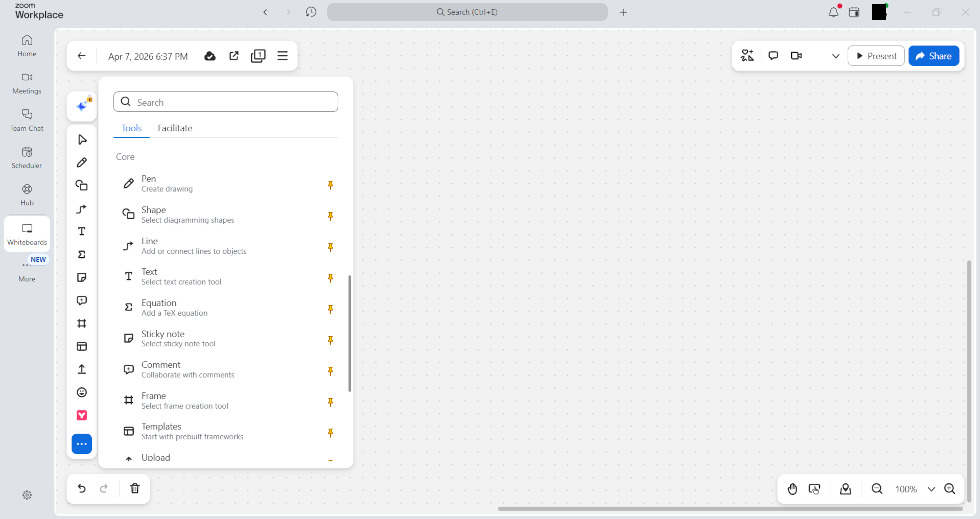
This screen shows the Zoom Whiteboard editor, a collaborative workspace. The side menu provides tools to insert templates, text, shapes, sticky notes, tables, and images, while the top menu allows management of version history, timer and pointer settings, comments, and the Focus mode to guide participants’ attention.
AI Companion is integrated for content generation, alongside support for multiple pages and sharing via link or email. Permissions are granular: participants can be assigned roles as editors, commenters, or viewers, enabling collaboration both during and after the meeting.
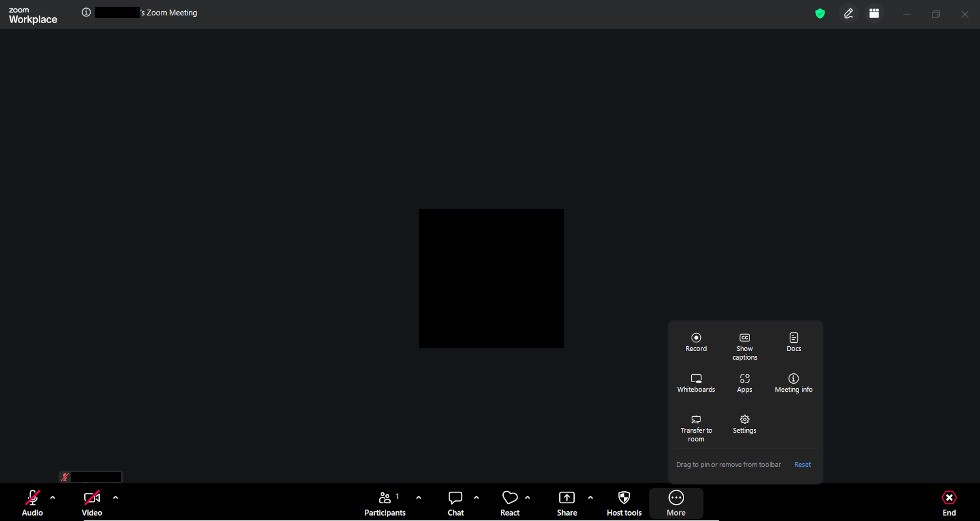
This screen shows the interface of an ongoing Zoom meeting. Through the bottom toolbar, the host can manage audio and video, as well as adjust security settings (such as locking the meeting or enabling the waiting room). Controls are also available to monitor participants, open the chat, share the screen or whiteboard, and use captions and reactions.
A key feature for teaching is the Breakout Rooms: the meeting host can divide participants into separate sessions for group work, with the ability to move freely between rooms to monitor activities. Finally, the menu provides access to advanced options and allows the user to end or leave the meeting.
Zoom can be used in an educational context to:
 Groups managementCollaboration & CommunicationShared whiteboards
 Designing & PlanningA.I. tools
 4/5
5
4/5
5
 3.8/5
5
3.8/5
5
3.9/5
5
3.6/5
5
3.8/5
5
3.8/5
5
3.9/5
5
3.6/5
5
 Add comment











Copy link