


Enter all the desired criteria: the apps that satisfy them all will be searched; if a criterion is specified multiple times, only the last occurrence will be considered.

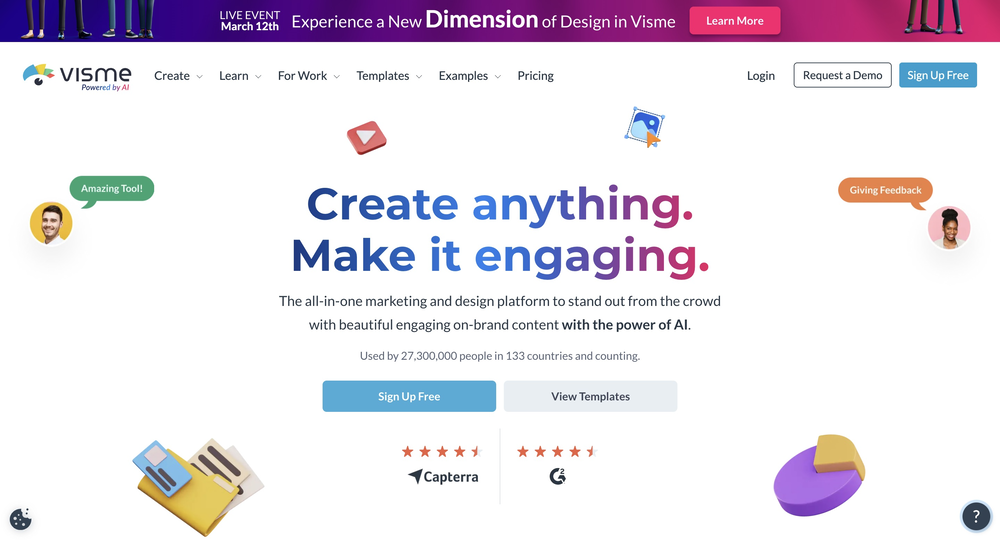
This is the Home Screen of Visme where you can sign-in and log-in before starting to use the app. Here can be found links that lead to some useful pages like the tutorial one, the one with the pricing, the one with the different templates and the create page.
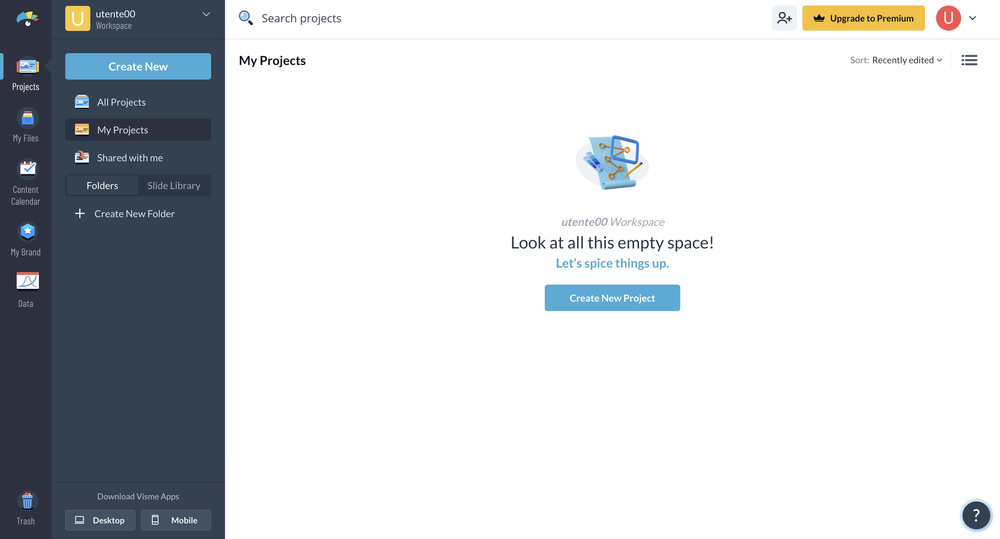
This is the personal dashboard of the account. In the projects area there is the possibility to create new projects starting from scratch or by using templates and see the ones that were made before. For the dimensions, the choice is between models with pre-defined dimensions or specify custom dimensions. Furthermore, artificial intelligence is available and can be used to create products. In the menu on the left it is also possible to observe 5 other icons; my files, where users can upload their files from their computer, content calendar, where users can view their tasks and project deadlines, my brand, where users can create templates to use for their brand, data, in which users can view and analyze the content traffic and trash.
 This is the editing page. On the menu located to the left side of the page, users have access to different options; basics, graphics, photos, data, media and theme colors are the primary categories in which the users can find the different elements that they can use in order to create a project like the characteristics of the text, the images, different types of graphics and many shapes and icons.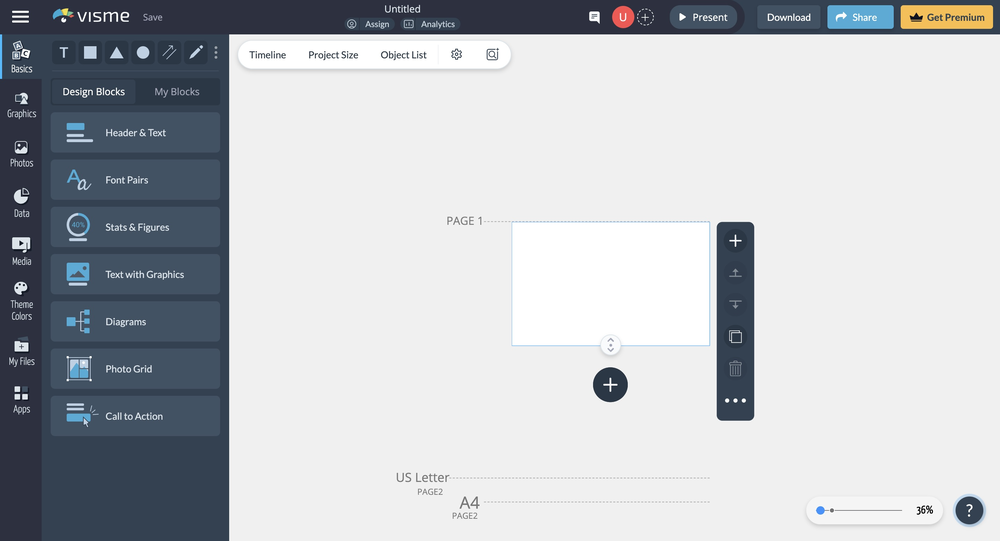
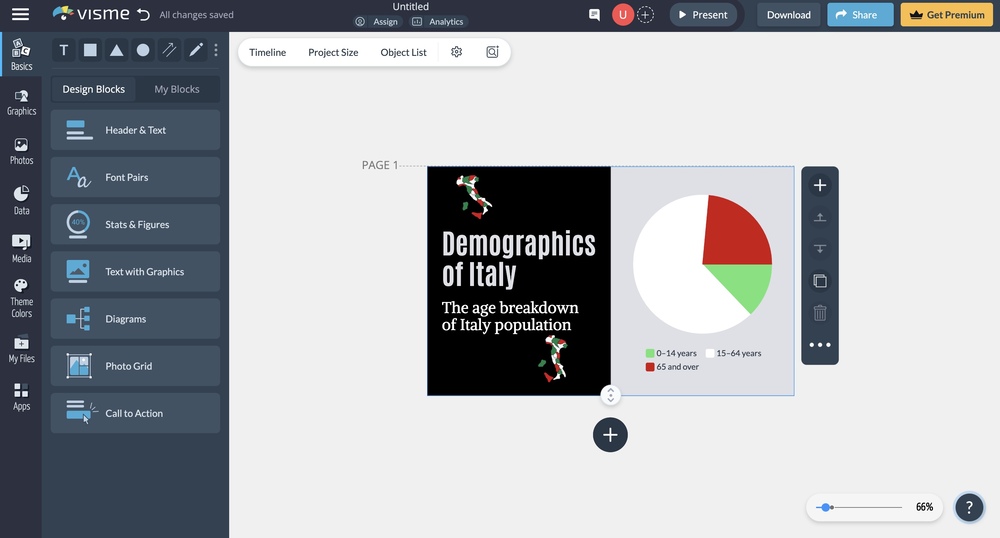
Here is an example of an infographic made with Visme. All of the changes applied to the projects are saved automatically. With a free account, the project can only be shared with other users but it cannot be saved in any saving format.
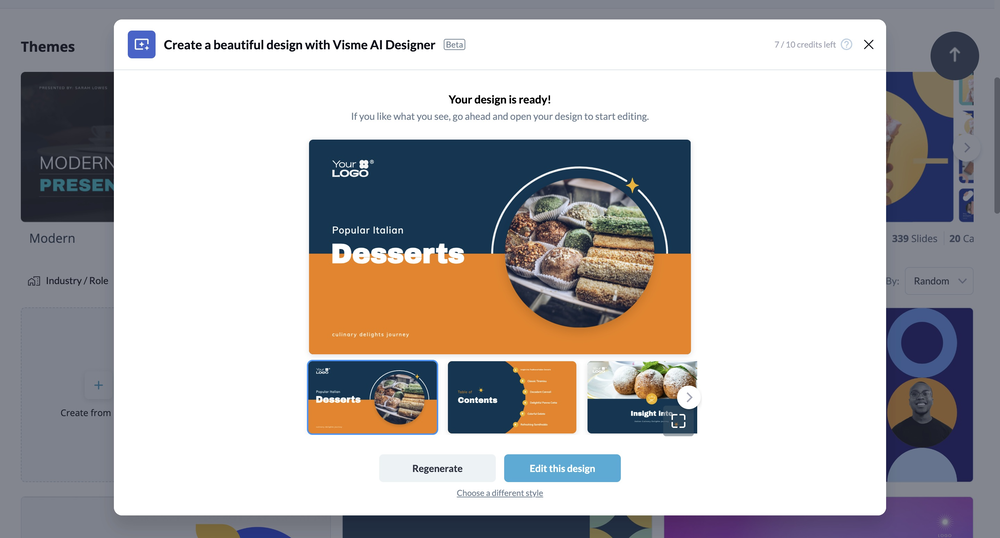
Here is an example of a presentation created by the AI of the app. Starting from some requests given to the application via messages, the application managed to create a presentation from scratch. This presentation can be further modified to the user liking or the user can choose to recreate it from scratch by clicking the regenerate button.

 4.4/5
4.4/5
 5
4.4/5
5
4.3/5
5
4.5/5
5
4.3/5
5
5
4.4/5
5
4.3/5
5
4.5/5
5
4.3/5
5
 Add comment









Copy link