


Enter all the desired criteria: the apps that satisfy them all will be searched; if a criterion is specified multiple times, only the last occurrence will be considered.

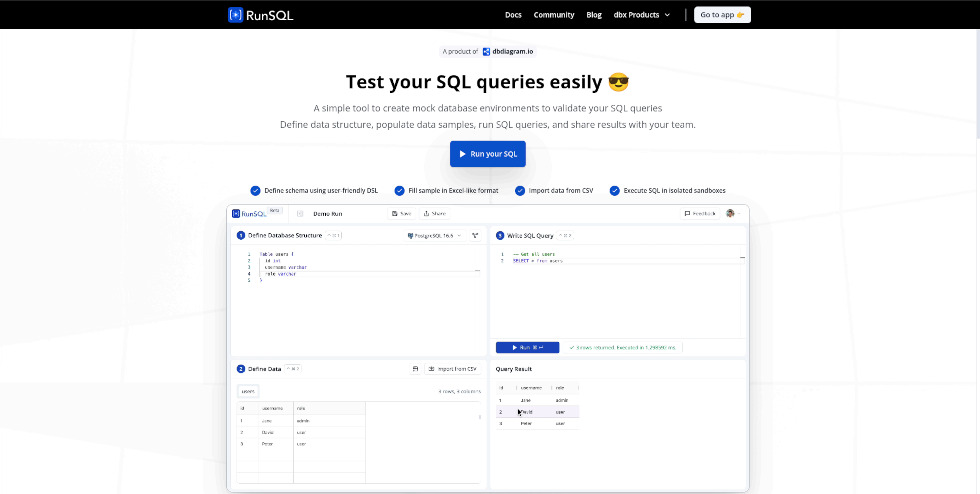
This is the RunSQL homepage: by clicking on 'Run your SQL' or 'Go to app,' you can immediately access the workspace without registration. A demo video in the center showcases the app's main features, followed by a brief description of the platform's capabilities and use cases further down the page.
This is the RunSQL workspace. On the left is the project sidebar, where you can view existing projects or create new ones using the '+' button. At the top, next to the project name, a dropdown menu allows you to select the SQL engine (PostgreSQL, SQL Server, MySQL), while to its right are the main commands: Save, Import (to upload schemas or CSV files), and Share to generate a sharing link. In the top right corner, the Help menu allows you to leave feedback or access the community.
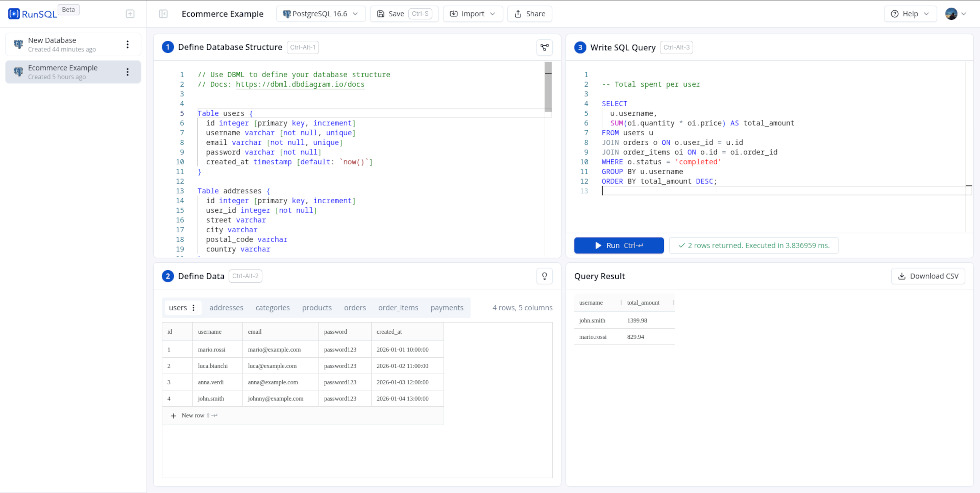
The central part of the workspace features a four-pane layout, allowing you to manage different stages of your project simultaneously. The first pane, located in the top left, is dedicated to defining the database structure using DBML and includes a direct link to the official documentation. In the upper corner of this window, the relational schema icon allows you to visualize the table diagram and their connections.
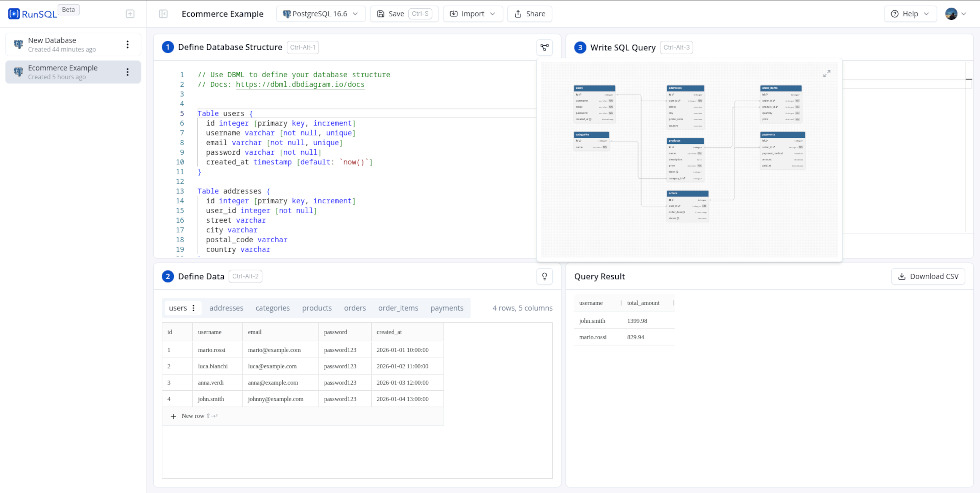
The bottom-left pane, 'Define Data', allows you to manage table content and quickly switch between tables using tabs. Data can be entered manually via '+ New row', automatically generated by adding 100 random rows, or imported by dragging and dropping CSV files or copy-pasting from spreadsheets.If a CSV file for an undefined table is uploaded, RunSQL automatically generates the corresponding DBML structure in the window above.
The top-right pane is the SQL Editor, where queries are written and executed using the 'Run Ctrl+Enter' button, providing immediate feedback on the number of rows returned and execution time.
Finally, the bottom-right pane displays the results in a tabular format, with the option to export them via 'Download CSV'. In the event of a query error, the system provides a message indicating where the problem is located within the code. To move quickly between the different sections, keyboard shortcuts such as Ctrl+Alt+1, Ctrl+Alt+2, and Ctrl+Alt+3 are available.
RunSQL can be used in educational settings for:
 0/5
5
0/5
5
0/5
5
0/5
5
0/5
5
0/5
5
0/5
5
0/5
5
0/5
5
0/5
5
 Add comment









Copy link