


Enter all the desired criteria: the apps that satisfy them all will be searched; if a criterion is specified multiple times, only the last occurrence will be considered.
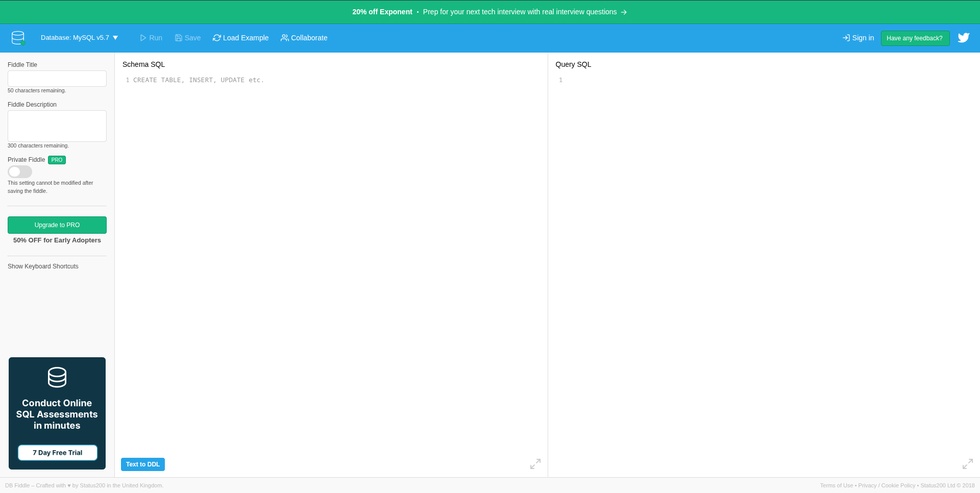
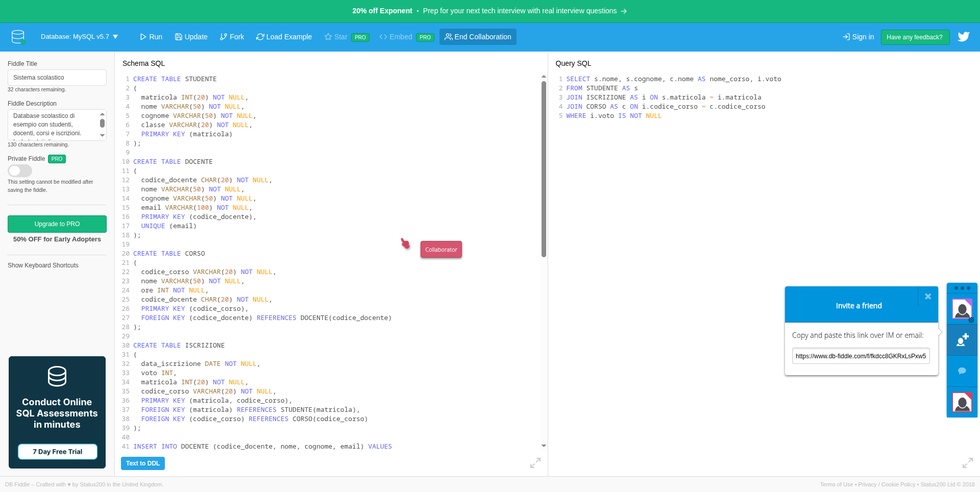
The following screenshot shows the DB Fiddle homepage, which also serves as the main workspace. The interface is divided into two vertical panels: the one on the left is dedicated to creating and populating the database schema, while the one on the right is used for SQL query writing.
In the left sidebar, the “Fiddle Title” and “Fiddle Description” fields allow users to assign a name and a description to their project. As for the environment configuration, the blue top bar contains, on the left, a drop-down menu for selecting the DBMS and the version to be used, while on the right is located the “Sign in” button. All the features included in the free plan are available without registration.
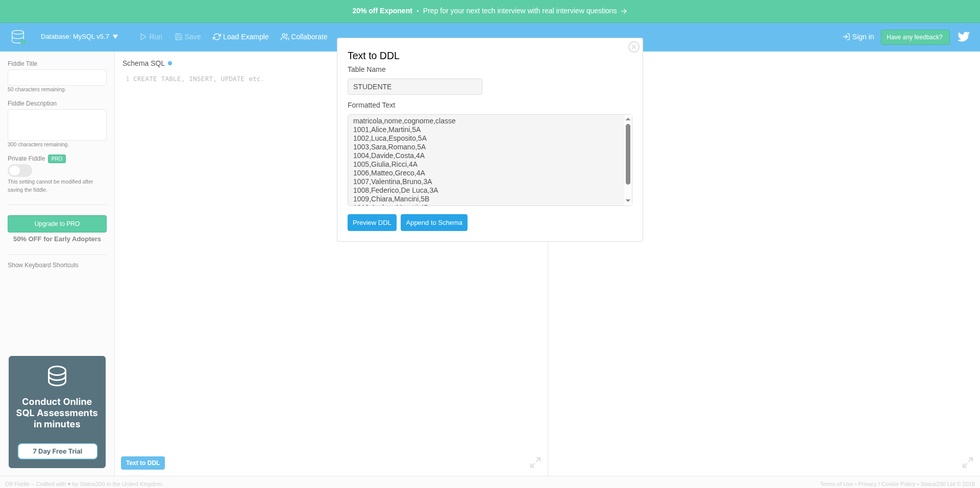
To start using the application, users can click the “Load Example” button, which loads a predefined sample database, copy their own DDL code directly into the “Schema SQL” panel on the left, or click the “Text to DDL” button, located at the bottom of the same panel, to import one table at a time by pasting it in CSV format and assigning it a name. In the latter case, it is also possible to preview the DDL code before adding the new table to the schema.
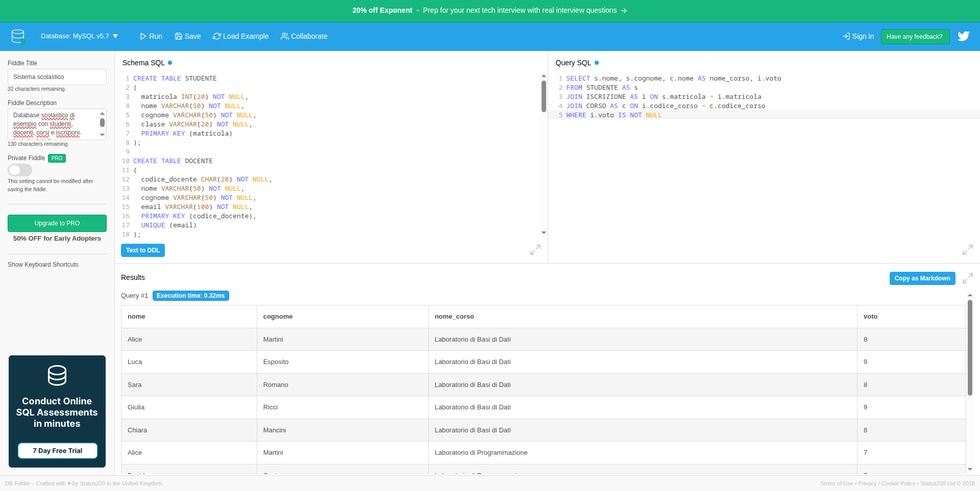
Once the database has been created, users can click “Save” in the top navigation menu to generate a shareable URL for their fiddle. At this point, they can write a query in the right-hand panel and execute it using the “Run” button. A third panel will then appear at the bottom of the screen, showing the query results, the execution time, and the “Copy as Markdown” button, which allows users to copy the schema, the query, and the resulting table to the clipboard in Markdown format, so they can easily paste them into a text editor.
Once the first save has been made, the “Save” button becomes “Update”. Each time users click this button, a new URL is generated, ending with an incremental number and containing the current state of the work. If they select “Fork” instead, a completely new URL is created. These functions are useful for returning to previous versions, by using the final number of the saved URL, and for sharing a new copy of one’s work.
Another interesting option is synchronous collaboration. By clicking “Collaborate”, a right-hand side panel opens with an invitation link, through which one or more collaborators can be invited. When collaborators access the fiddle, their pointer appears on the screen, identified by a colour and a name, making it possible to observe in real time the changes they make to the database, the queries they write, and the results of their executions. In addition, through the speech-bubble icon in the collaboration panel, users can open a chat to communicate with the other users.
To end the collaborative session, users simply need to click “End Collaboration”.
DB Fiddle can be used in educational contexts to:
 0/5
5
0/5
5
0/5
5
0/5
5
0/5
5
0/5
5
0/5
5
0/5
5
0/5
5
0/5
5
 Add comment









Copy link