


Enter all the desired criteria: the apps that satisfy them all will be searched; if a criterion is specified multiple times, only the last occurrence will be considered.

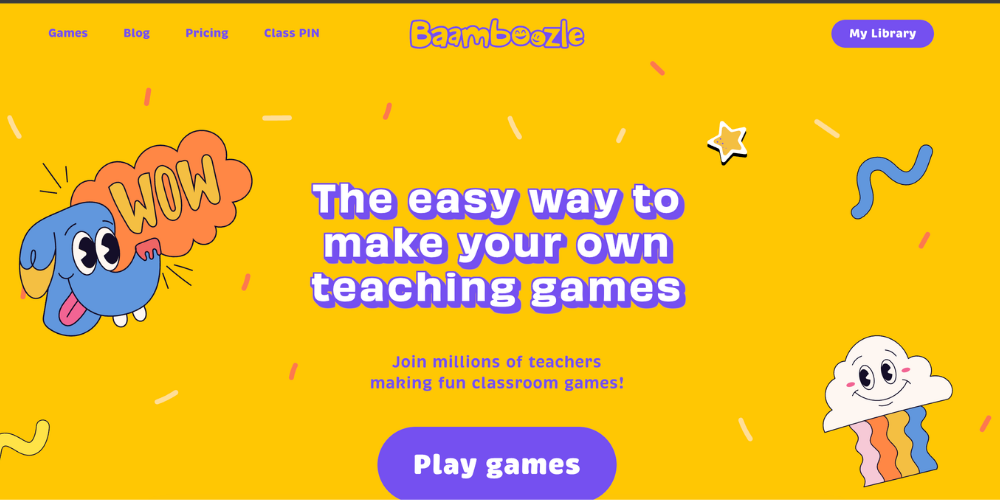
The home page welcomes users with a dynamic and modern interface, designed to enhance the fun aspect of learning from the very first glance.
On the home page, click "Join for free" and proceed with registration or login by entering your email address and password..
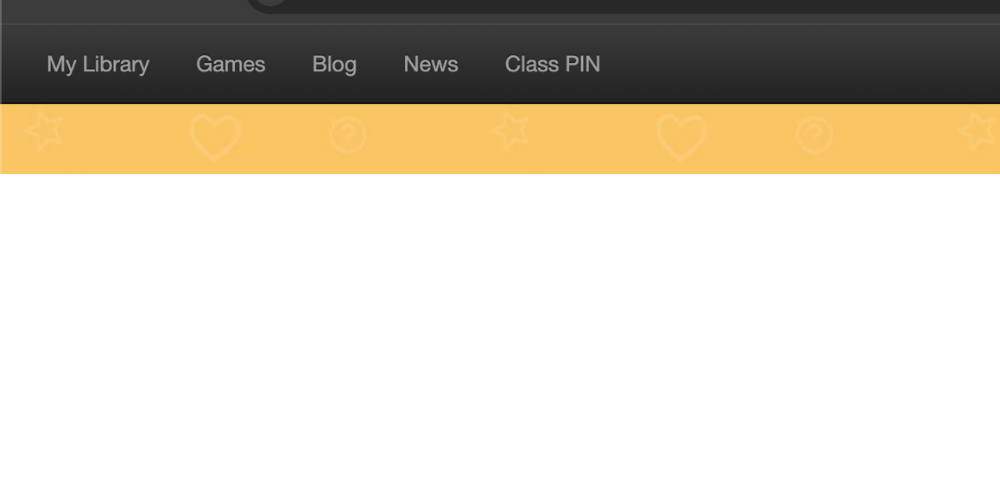
The dashboard, at the top left, offers a main menu with the following sections:
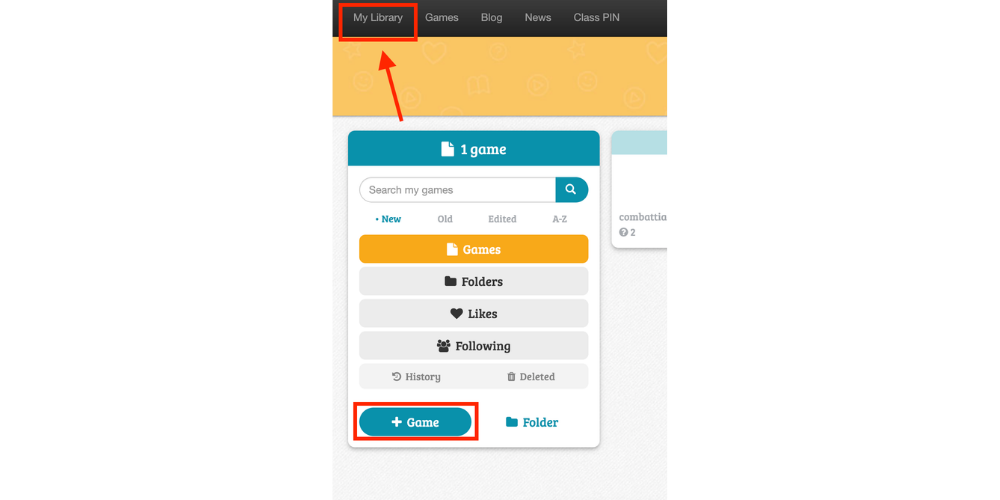
The following is the screen for creating a quiz.
The process for creating a custom quiz involves the following steps:
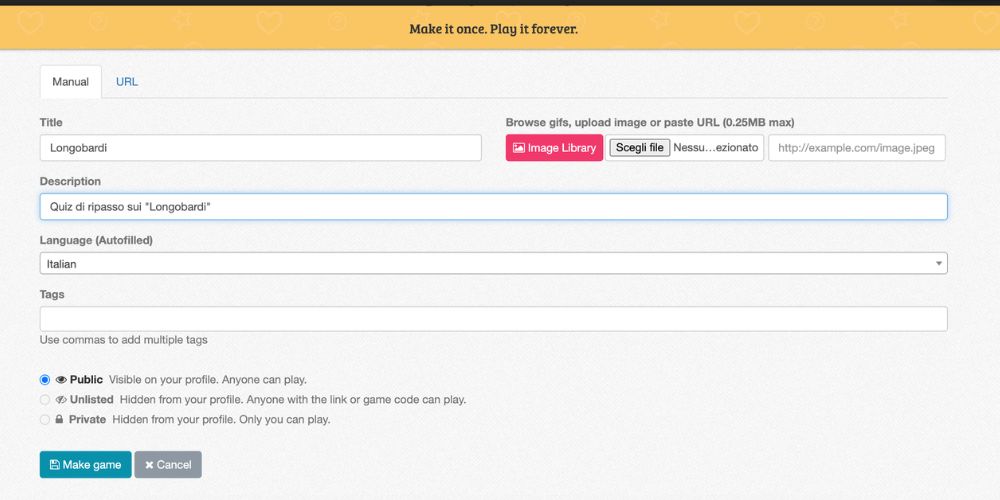
You will see two main sections:
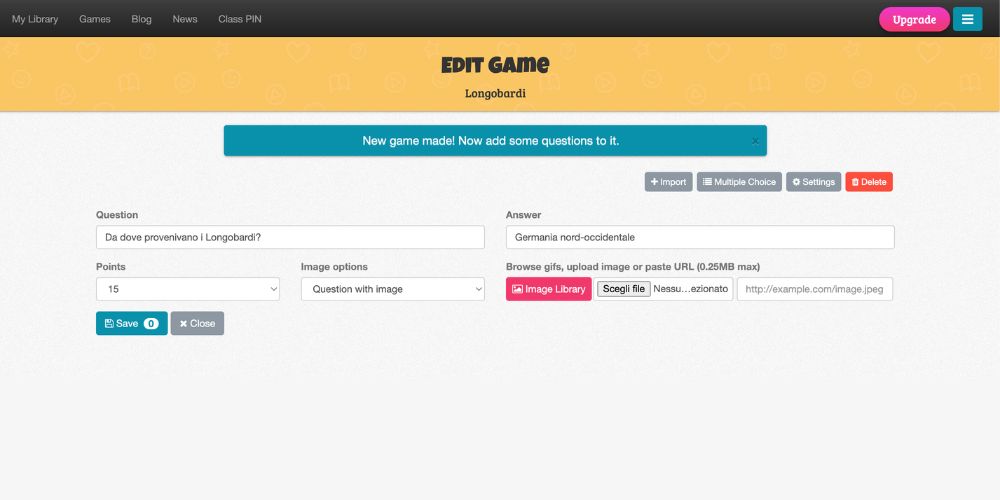
In "manual" mode, after completing each question, you must save it to add it to the list. It is possibile define both open-ended question and multiple choice questions.
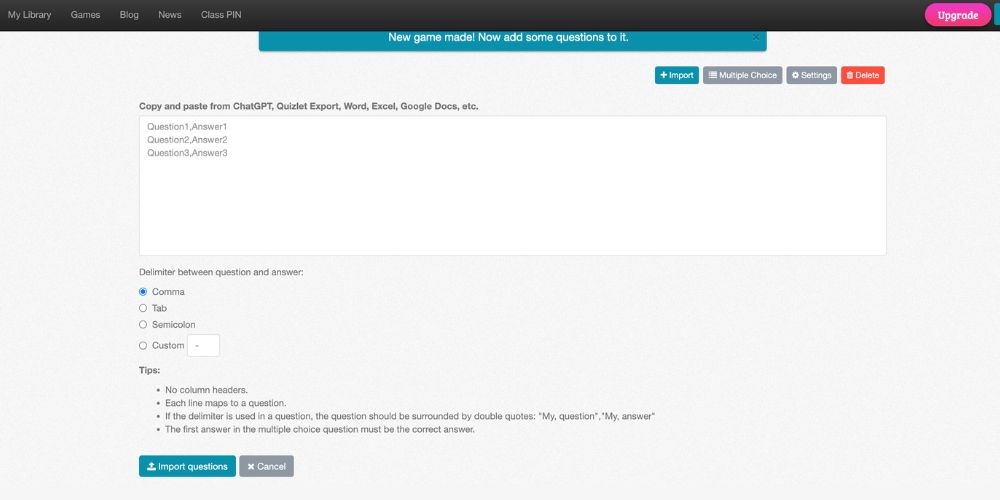
Using the Import button, you can also import questions and answers you've already created from various sources, such as ChatGPT, Quizlet Export, Word, Excel, Google Docs, etc.
Finally, proceed to definitively save the quiz.
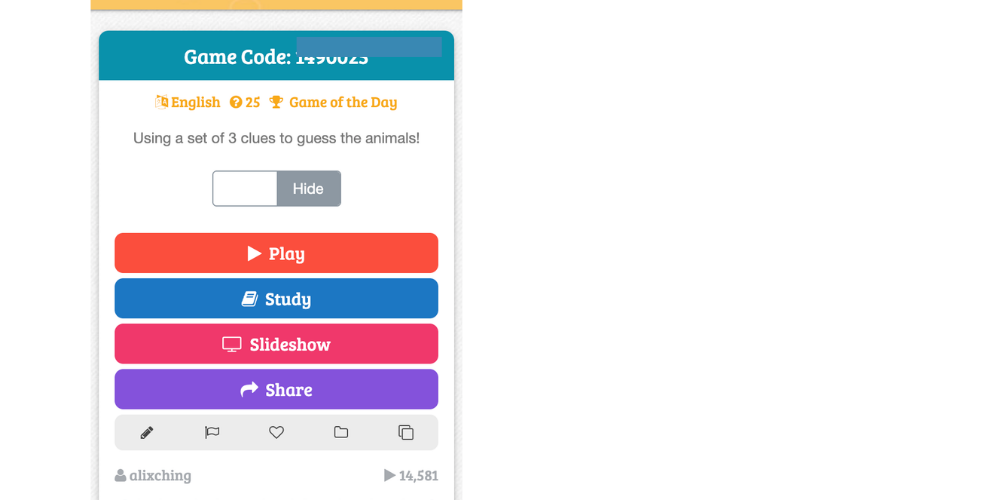
The following screen appears after selecting a game from your library.
When selecting a game from the library, the interface displays a preview screen with four main controls:
The game modes are illustrated below, comparing them according to the plans:
Baamboozle can be used in education to create personalized quizzes and educational games, encouraging revision and knowledge consolidation in an engaging and interactive way. Thanks to its playful approach, Baamboozle promotes active participation, collaboration, and student motivation during lessons, both in person and remotely.
 0/5
5
0/5
5
0/5
5
0/5
5
0/5
5
0/5
5
0/5
5
0/5
5
0/5
5
0/5
5
 Add comment









Copy link