


Enter all the desired criteria: the apps that satisfy them all will be searched; if a criterion is specified multiple times, only the last occurrence will be considered.

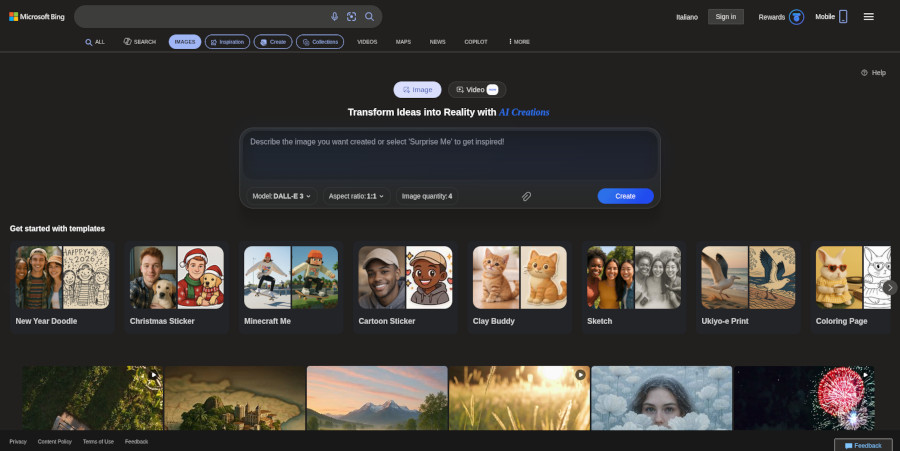
The following screen shows the Bing Image Creator home page, from which users can immediately enter the text they want to transform into an image. The page is integrated within the features offered by Microsoft Bing.
After entering the text prompt, the user can select, via the drop-down menus, the artificial intelligence model to use and the image aspect ratio. At this point, it is sufficient to click “Create” to start the generation process.
Alternatively, by clicking the paperclip icon, users can upload an image from their device and modify it by entering a descriptive prompt.
If, instead, the user wishes to create a short video, they can select the “Video” section, which offers up to 10 high-priority creations per day. However, before viewing the final result, it is necessary to complete the registration process.
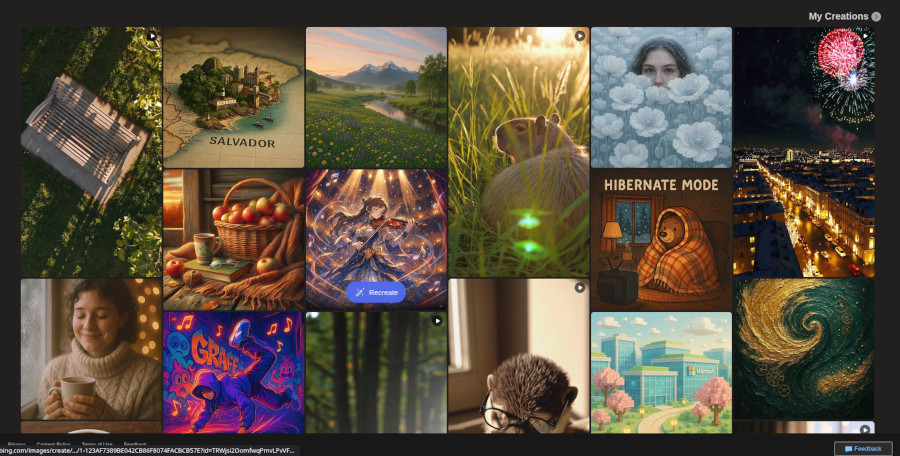
By scrolling down with the mouse, users can explore a series of images as a source of inspiration and view their own creations by clicking on ‘My Creations’.
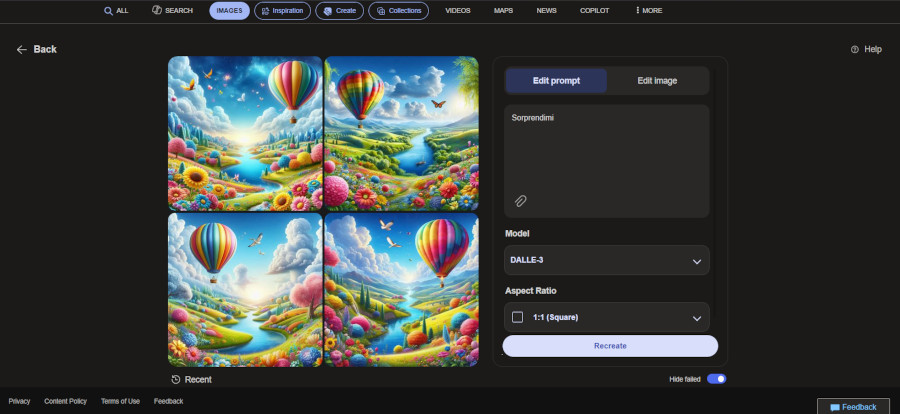
Here is an example of an image created with the app. If the result does not match the desired outcome, it can be modified. After clicking on the image, it is possible to share, download, or save it.
Bing Image Creator can be used in an educational context to: express concepts creatively by transforming text into visually appealing images to stimulate creativity and visual communication; present ideas visually and enhance the ability to communicate complex concepts through graphic supports; create engaging educational materials by transforming educational texts into captivating images to maintain attention; generating images based on textual descriptions can stimulate students’ creativity in writing and storytelling.

 4/5
5
0/5
5
0/5
5
0/5
5
0/5
5
4/5
5
0/5
5
0/5
5
0/5
5
0/5
5
 Add comment














Copy link